Page Alert
Stop checking. Get notified.
Read at your own pace, or press “Listen to this chapter” and let the narrator read along while you scroll.
Download PDF 11 MBBefore you begin
Page Alert watches pages for you.
No account.
No ads and no ad tracking.
Free for Chrome and Edge.
Select what matters to you on a page: a price, a number of offers, a temperature. Page Alert lets you know when it changes.

Contents
- Prologue🎧
- Before we start🎬
- Chapter 1. First steps🎧
- Chapter 2. Anna and the perfume🎧
- Chapter 3. Tom and Kate look for a flat🎧
- Chapter 4. Peter and the dream job🎧
- Chapter 5. Maggie and the concert tickets🎧
- Chapter 6. Paul, the journalist🎧
- Chapter 7. Helen and the frost🎧
- Chapter 8. A phone in your pocket🎧
- Chapter 9. How it works under the hood🎧
- Chapter 10. Honest limits🎧
- Chapter 11. Plans and frequently asked questions🎧
- Epilogue🎧
- Important note
- Links
Prologue. We don't browse the web anymore. We check it.

How many times did you open the exact same webpage today?
Maybe it was an online store. Maybe a job board. Maybe a real estate listing. Maybe a government portal. Maybe an exam results page.
Deep down, you weren't browsing. You were checking.
Just for one specific thing. Has the price dropped? Is the item back in stock? Has a new job offer appeared? Did the deadline change? Are the results out yet?
Then you closed the tab. A few hours later, you opened it again. Nothing changed, so you closed it.
Later that day… you checked again.
The invisible habit
Most of us do this without even thinking. It has quietly become the default way we use the internet.
We rarely care about the whole website. Think about the last page you kept returning to. Did you actually read everything on it every single time?
Probably not. Maybe the homepage banner changed. Maybe a new recommendation popped up. Maybe the layout looked slightly different. None of that mattered to you.
You were looking for one specific piece of information. One price. One date. One sentence. One number. One new item on a list.
Everything else was just noise.
The digital twitch
This happens in almost every corner of the web, not just in shopping. You check job portals. Apartment listings. Government updates. University sites. Auctions. Travel deals.
Every website looks different, but the habit is always the same:
Open. Check. Close. Repeat.
Sometimes just a few minutes apart.
These tiny checks become a subconscious routine. A digital twitch, a muscle-memory reflex. You open your laptop to write an email, and before you know it, your fingers have already typed the address of that listing page.
Each visit takes only a few seconds, so it never feels like a problem. You tell yourself: I'll just check again later. But later becomes an endless loop.
The cost of “nothing changed”
This loop has a psychological price. Psychologists link it to the Zeigarnik effect.
Our brains hate unfinished business. When you are waiting for a price to drop or for results to be published, your brain treats that webpage as an open loop, an unfinished task.
Every time you check a page and see that nothing has changed, you feel a tiny, subconscious disappointment. And because the loop is still open, the tension stays.
We cope in one of two ways. We either keep the page open forever, until the tab bar turns into a chaotic to-do list that eats up the computer's memory. Or we refresh it compulsively. We burn real focus just to see whether a single number on the screen has changed.

Modern websites don't help. They are designed to be noisy. Banners shift, counters tick, feeds refresh to grab your attention. But none of those changes are the reason you came back. You are in a room full of flashing lights, looking for one quiet answer.
Changing the perspective
Maybe we have been looking at the problem the wrong way.
We say we are checking a website. But we aren't. We are checking information. The website is just the heavy, noisy box the information happens to sit in. Why download the whole box every hour just to look at one thing inside it?
For a long time, I thought this was just another small tax we all pay to the internet. But the more I noticed it, the more absurd it seemed. People don't want to watch whole websites. They just want to know when one specific value, sentence, or item changes.
This observation stayed with me for months. Eventually, it became the starting point of a project I called Page Alert.
I wanted to build something that watches exactly the information we care about. So that we no longer have to be manual page refreshers, burning our own energy. And so that nobody has to hand over their personal data: no account, no email address.
What's next
In this book, you will meet seven people. Each of them has a problem, and each of them stopped checking the same page over and over again.
Anna is waiting for a perfume to get cheaper. Tom and Kate are looking for a flat. Peter is waiting for changes in his dream job offer. Maggie is hunting for concert tickets, and Paul keeps an eye on press releases. Helen is worried about a night frost. And at the end, Anna leaves her computer at home and gets a notification on her phone.
Before we start
A few things worth knowing before the first chapter.
Prices and currency. The stories take place in a European city, so the prices are in euros. Page Alert works with any currency, including dollars, pounds, francs and yen, because it simply reads the price exactly as it appears on the page.
Privacy. The pages shown in this book and in the videos are examples. Some names, places and personal details are blurred.
Languages. The screens show Page Alert in English, but it is available in six languages. Page Alert keeps improving, so your version may look a little different.
Your ideas. Have an idea, a suggestion or a feature you are missing? Write to me. The email address is on the Page Alert website and in the extension settings, under “Write an email”.
How the chapters work. Every chapter tells one story, then shows you step by step how to do the same.
Let’s begin with the first steps.
Chapter 1. First steps

You can set up your first alert in under two minutes. All you need is Chrome or Edge, and a page you have been checking by hand for far too long.
It usually starts the same way. You are tired of checking manually, so you type “extension to monitor prices” into a search engine. And among the results, you find Page Alert.
Installation
Page Alert is available in two extension stores: the Chrome Web Store and Microsoft Edge Add-ons. It works the same way in both browsers. Pick the one you use every day.
Page Alert is here: Chrome Web Store · Microsoft Edge Add-ons. More information: Page Alert website.
On the extension page, click the blue button: “Add to Chrome” in Chrome, or “Get” in Edge. Your browser will ask for permission. Confirm, and you are done. No account, no forms, no email address.
Free for Chrome and Edge.
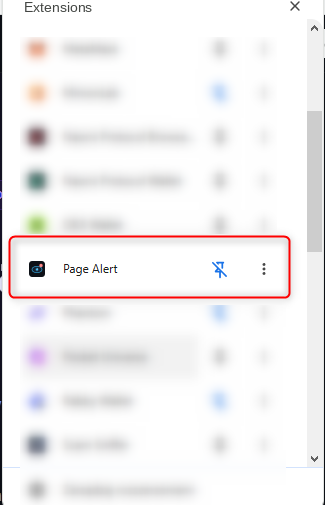
Pin the icon
New extensions hide under the puzzle icon next to the address bar. It is worth pinning Page Alert, so it is always within reach.
Step 1. Click the puzzle icon next to the address bar.
Step 2. Find Page Alert on the list.
Step 3. Click the pin next to its name.
Your first alert
Open the page you want to watch. It can be a product in an online store, a weather forecast, or a list of job offers. Click the Page Alert icon and choose “Monitor element on this page”.
Now move your cursor around the page. A frame appears around the element under your cursor, with a small tooltip next to it. If Page Alert recognizes a price, a counter, or a temperature, the tooltip shows it right away. It also tells you whether it is a good element to monitor.
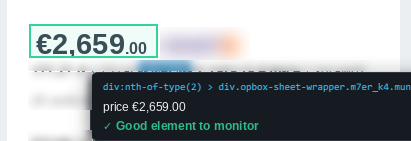
Click the element you want. A green frame appears around it, and the Page Alert window shows a preview of what you selected. Page Alert suggests a label for you. For a price, it is “Product price”. You can keep it, add to it, or type your own. Finally, click the button to start monitoring.
That is it. You can close the page. Page Alert will keep checking it for you, in the background.
Step by step
Step 1. Open the page you want to watch.
Step 2. Click the Page Alert icon, then “Monitor element on this page”.
Step 3. Hover over the element. Check in the tooltip that it is the right value.
Step 4. Click the element.
Step 5. Check the suggested label. Add to it or type your own.
Step 6. Start monitoring and close the page. You will choose how often to check later, on the alert card.
Tip: select the smallest element you can. The price alone works better than the whole product block, because the alert then reacts only to what really matters.
The alert card
Every alert in Page Alert has its own card. On it, you can see the label, the current value, the last change, and the starting value, which is the value on the day you set the alert. Next to it, you see the difference, so you know right away how much the price has dropped since the start.
Below the card, there are buttons. “Check now” checks the page immediately, without waiting. “Pause” puts the alert on hold, and “Remove” deletes it. On the card, you also choose how often Page Alert checks the page: every 15, 30, or 60 minutes. You can change it at any time, separately for each alert.
Sometimes an orange message appears on the card. It means Page Alert could not find the selected element on the page. Usually, the page has changed its layout, or the content is gone. More about this in chapter 10.
Notifications and history
When the value changes, your browser shows a notification, for example: “Price dropped from €29.99 to €21.99”. The title of the notification shows the alert's label, so you instantly know which alert it is about. A button in the notification opens the page.
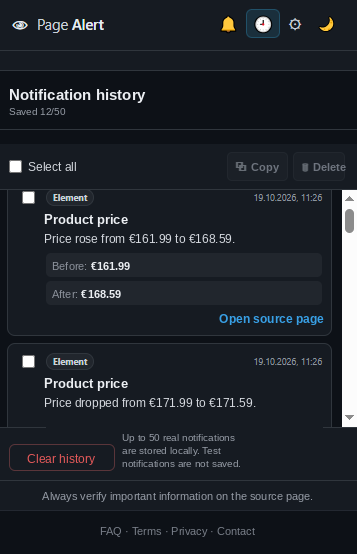
Notifications also go to your history, which you open with the clock icon at the top of the Page Alert window. Each entry shows the date and time, the value before and after the change, and a link to open the source page. The history keeps up to 50 of your most recent real notifications on your computer. Test notifications are not saved there.
Settings in a nutshell
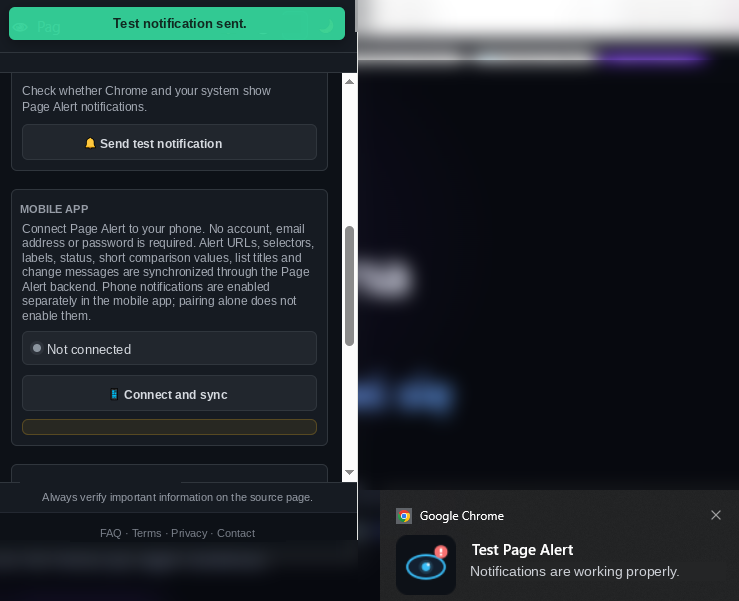
Page Alert automatically matches the language of your browser and supports six languages. You switch between the light and dark theme with the moon icon at the top of the window, and the gear icon opens the settings. There you will find a button to send a test notification. Use it right after installing. If everything works, a small window appears in the corner of your screen, confirming that notifications are working properly.
In the backup section, there are also two buttons: “Export alerts” and “Import alerts”. They come in handy when you switch to a new computer. We will come back to this in chapter 6.
One thing that may surprise you
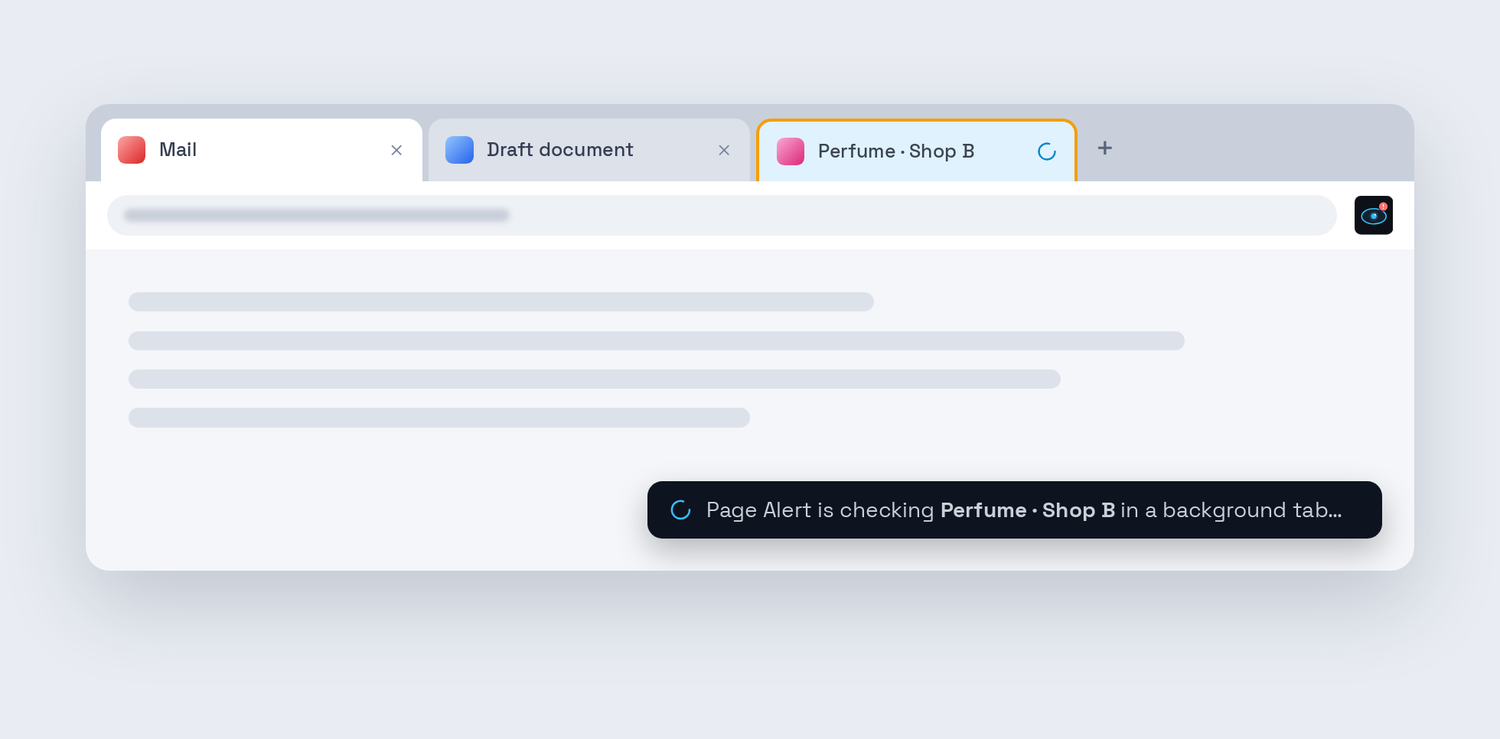
While checking, a new tab briefly appears in your tab bar. That is Page Alert opening the page in the background, reading your element, and closing the tab again. That is how it is supposed to work. You do not need to do anything about it.
Now you know how it works. Time to meet the people who stopped checking.
Chapter 2. Anna and the perfume

Anna set alerts for the same perfume in three shops. She bought it for €109.99 instead of €129.99, and she did not visit a single shop for three days.
The problem
Anna's sister has a birthday in three weeks. Anna knows exactly what to get her: the perfume her sister has been praising for ages.
The same perfume is sold in several shops, and the price is different everywhere. In Shop A it costs €129.99, in Shop B €124.49, in Shop C €131.00. And the prices keep jumping. One day there is a weekend sale, another day a discount code for a few hours. But you never know which shop, or when.
For the first few days, Anna does what everyone does. In the morning over coffee, she opens three tabs with the shops. Again during her lunch break. And once more on the sofa in the evening. The prices do not move, and Anna feels she is spending more attention on this than the perfume is worth.
A friend recommends a price comparison app. Anna installs it. First she has to create an account, then confirm her email. Two days later she has three emails full of so-called deals, and ads keep popping up in the app. She uninstalls it.
The solution
In the evening, Anna installs Page Alert. She opens the perfume page in Shop A, clicks the Page Alert icon and chooses "Monitor element on this page".
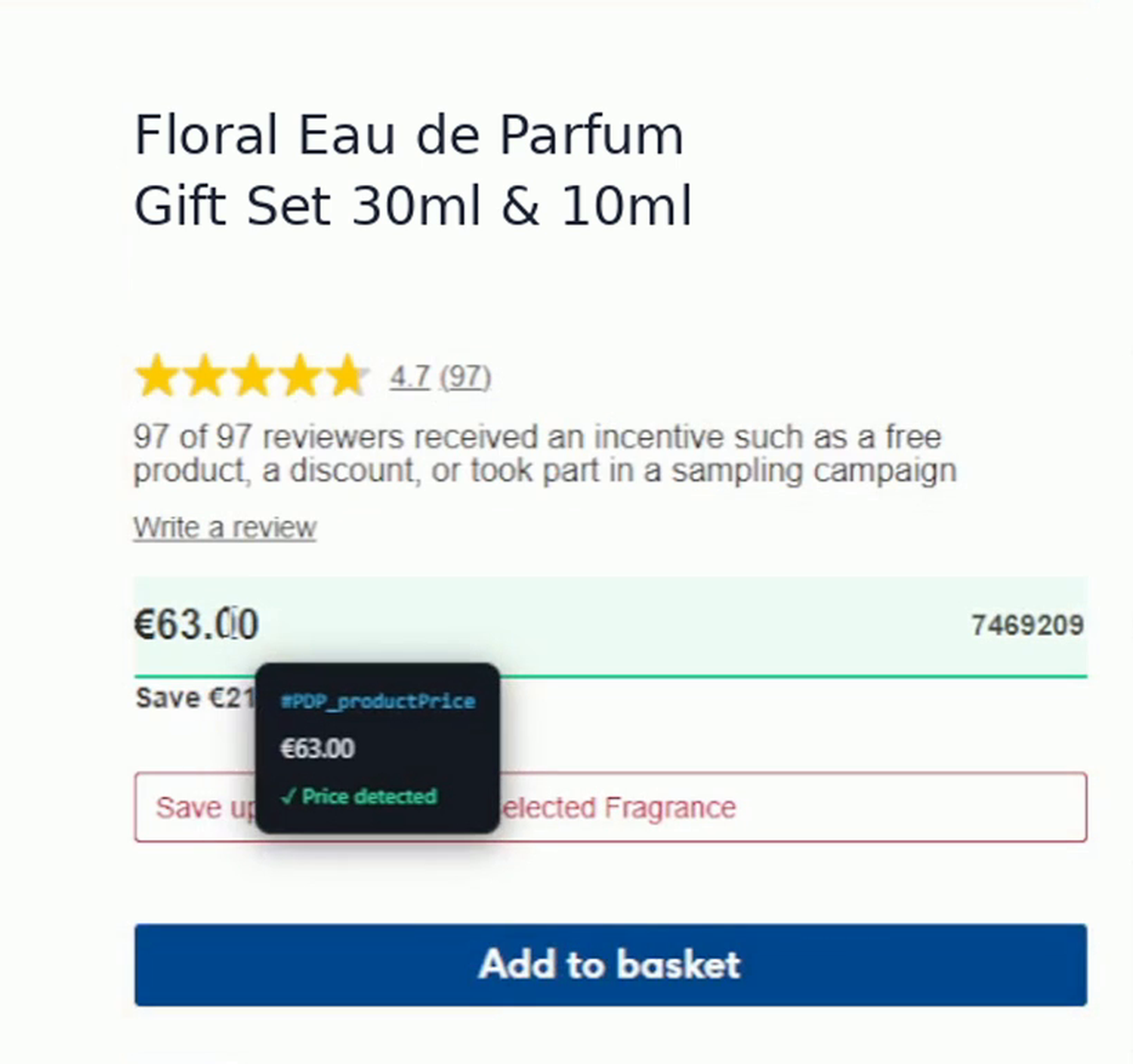
She hovers over the price. A frame appears around it, and the tooltip shows €129.99. Page Alert has recognized it as a price all by itself.
Anna clicks. The suggested label is already there: "Product price". Anna types her own, shorter one: "Perfume · Shop A". She starts monitoring and closes the tab.
Then she does the same in Shop B and Shop C. Each shop is a separate alert, because Page Alert only watches the pages where you set an alert. After five minutes, Anna has three cards, one for each shop.
No sign-up. No emails full of deals. No ads and no ad tracking. Page Alert does not know who Anna is. It only knows which prices to watch.
Three days later
On Thursday, Anna has meetings all day. In the afternoon, right in the middle of a presentation, a notification appears in the corner of her screen for a few seconds. Anna does not notice it.
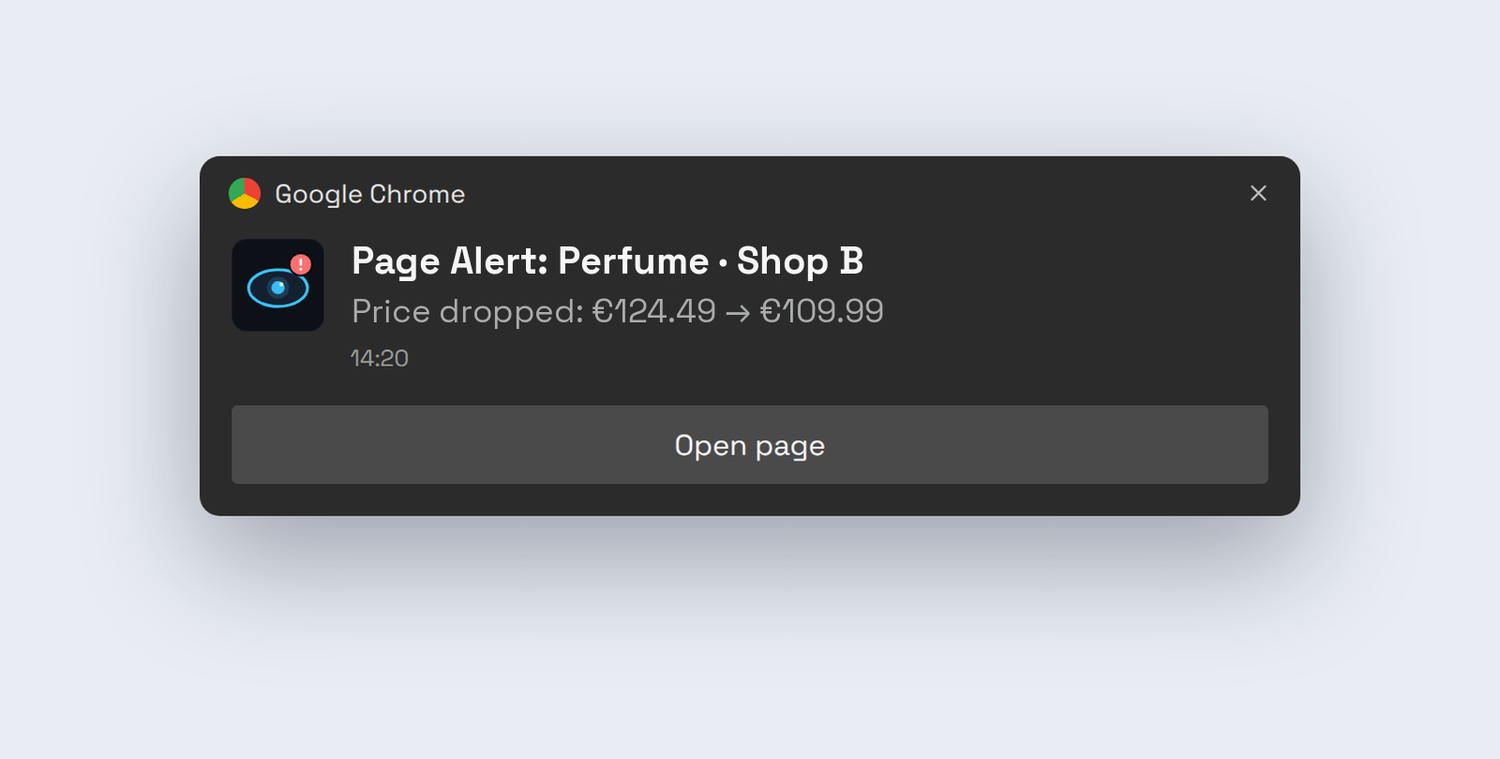
Nothing is lost. In the evening, Anna opens Page Alert and looks at the notification history. There is an entry from 2:20 pm: "Perfume · Shop B", the price dropped from €124.49 to €109.99.
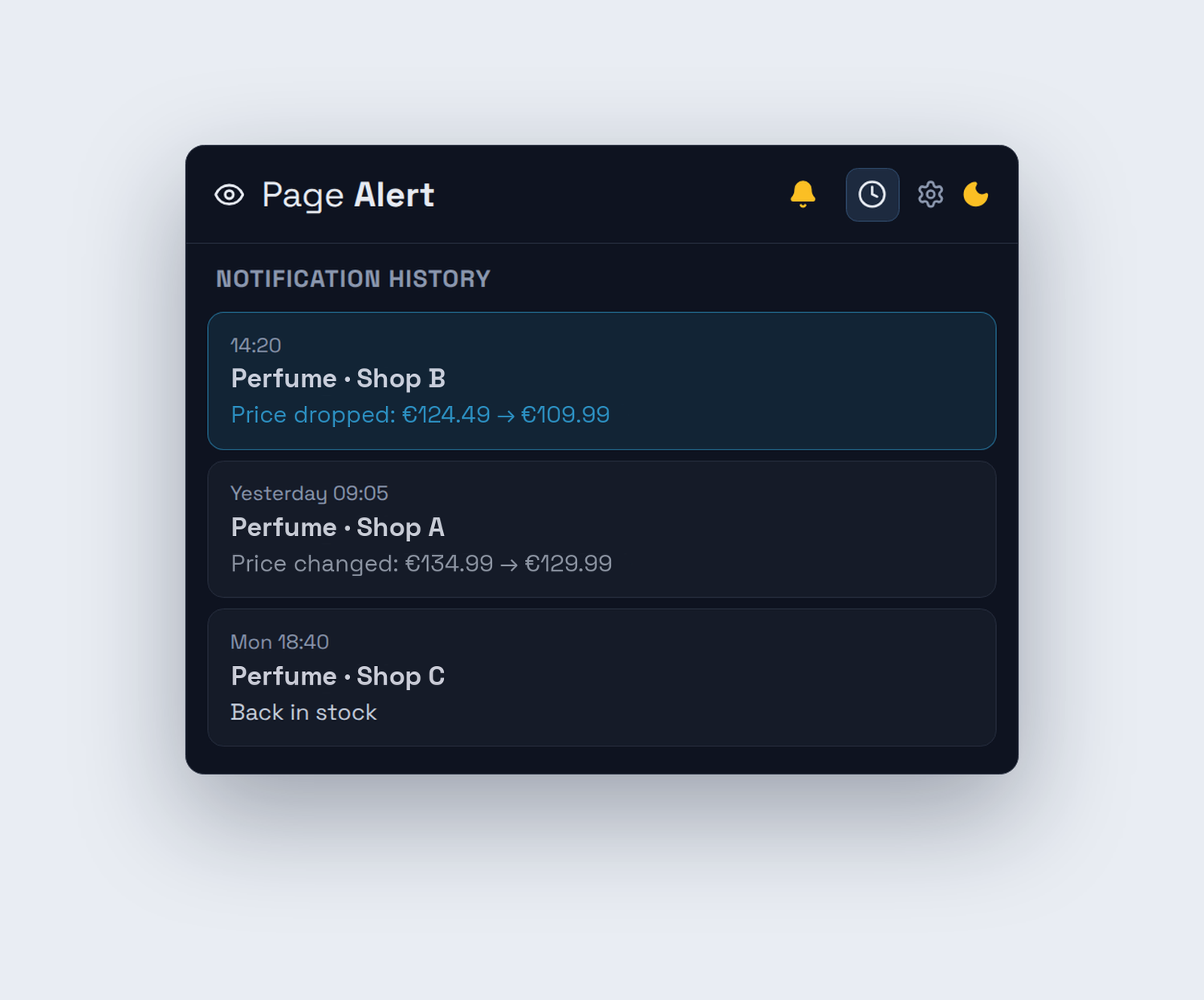
Anna clicks "Open source page" and she is right on the perfume page in Shop B. The weekend sale is still on. In the other two shops, the prices have not moved. Anna buys the perfume in two minutes.
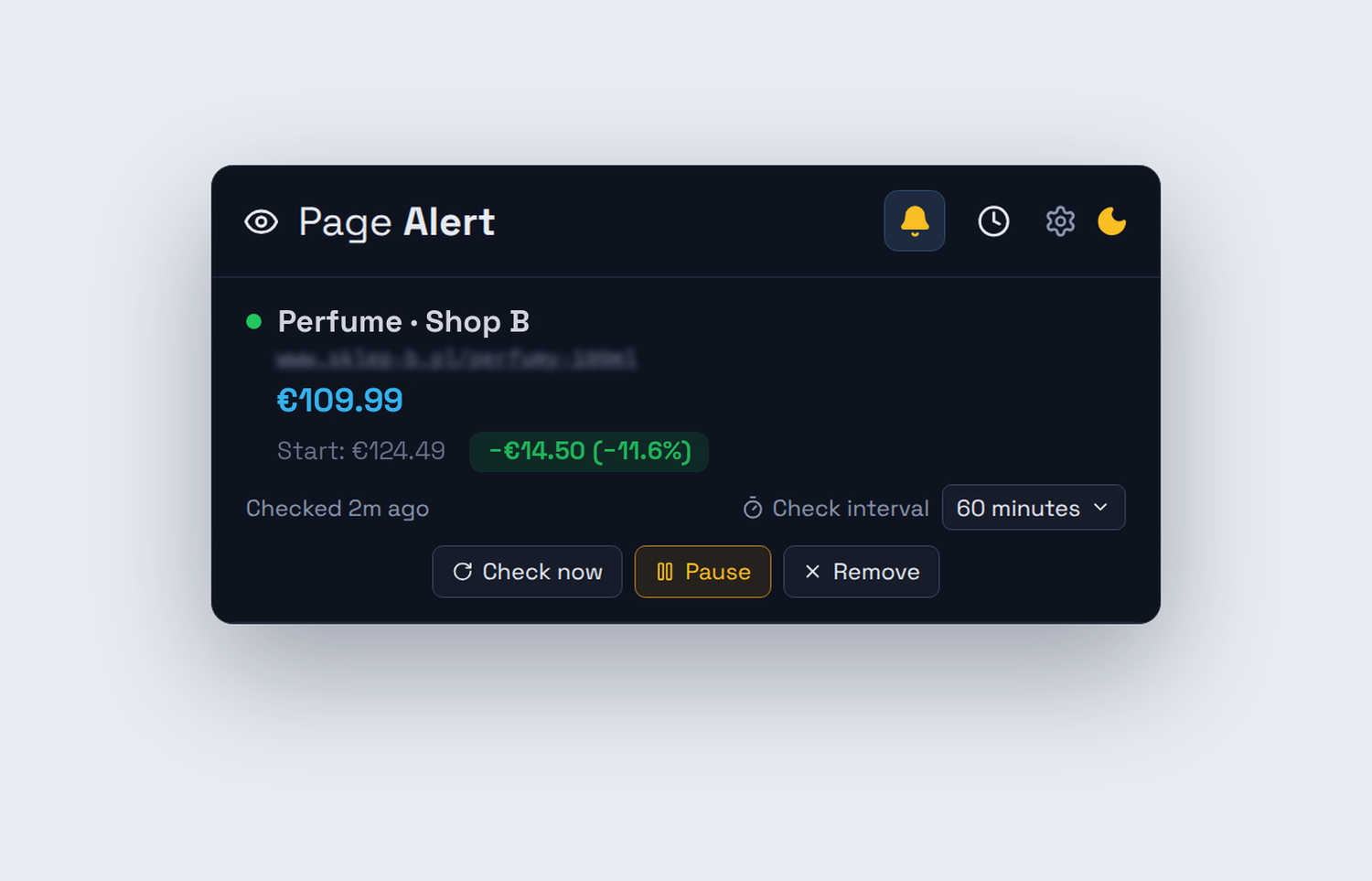
Then she takes another look at the Shop B card. It shows the current price, €109.99, the starting price, €124.49, and the difference: minus €14.50, or 11.6 percent.
Anna does not delete the alerts. She would like this perfume for herself too, just not at full price.
Step by step
Step 1. Open the product page in the first shop.
Step 2. Click the Page Alert icon, then "Monitor element on this page".
Step 3. Hover over the price. A frame appears around it, and the tooltip shows the recognized price, just like on the screenshot below.
Step 4. Click the price.
Step 5. The label "Product price" is already suggested. Add the shop name or type your own.
Step 6. Start monitoring and close the page.
Step 7. Repeat the same in every other shop. Each shop is a separate alert, so on your list you will see one card per shop.
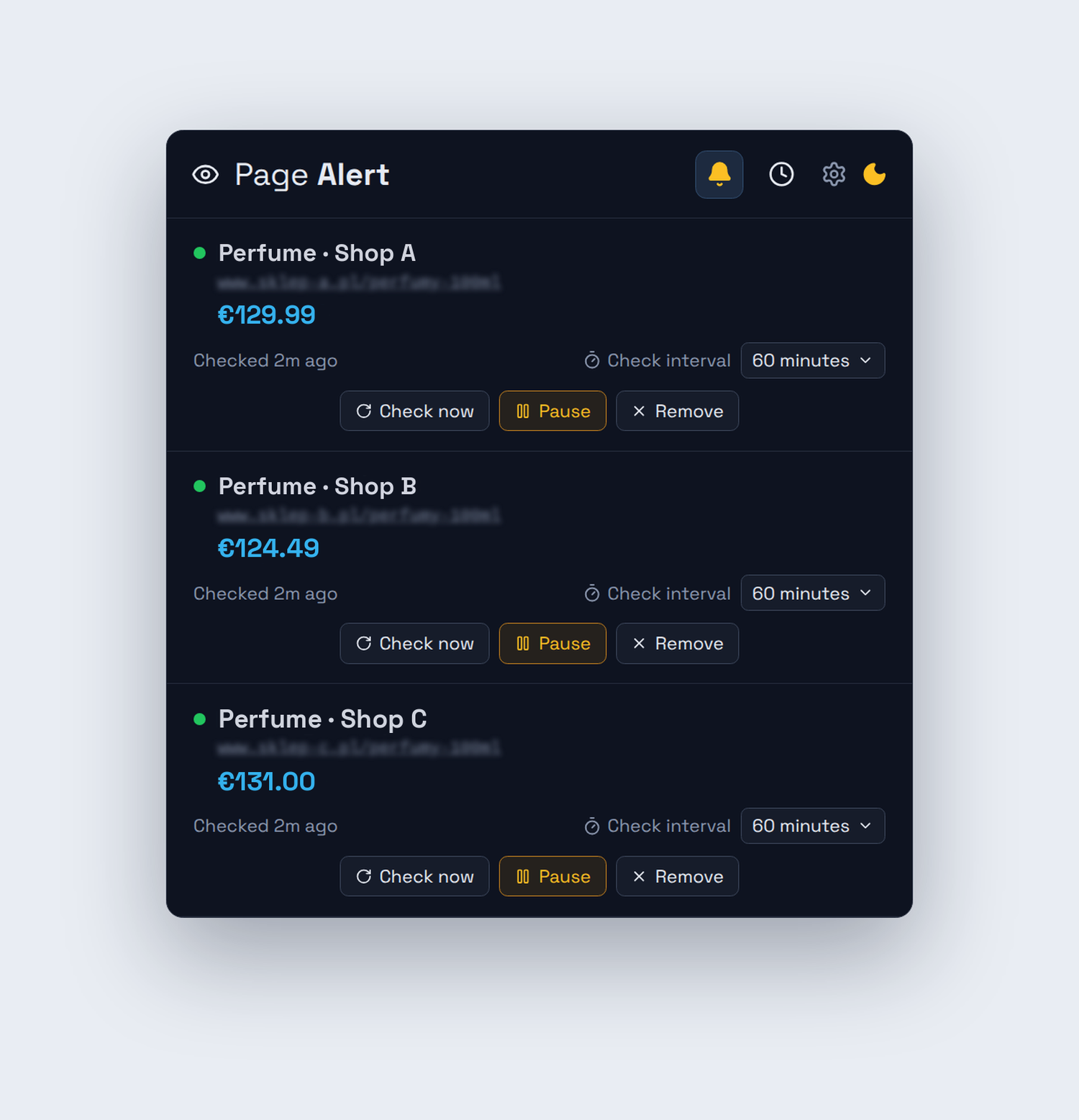
Step 8. When the price changes, open the alert card. You will see the current price, the starting price and the difference.
Tip: add the shop name to the label, so you know right away where the price dropped.
Tip: select only the price, not the whole product block. Then the alert will not react to a new photo, reviews or description.
Tip: if a shop shows two prices, an old crossed-out one and a new one, select the one you will actually pay.
Want to try it like Anna? Page Alert is free: Chrome Web Store · Microsoft Edge Add-ons.
Where else it works
The same works for any single value on a page: ticket prices, exchange rates, fuel prices, or a product that sold out in a few hours. Anywhere you have been waiting for one number or one word.
Chapter 3. Tom and Kate look for a flat

Tom and Kate stopped scrolling through listings every hour. And they were the first to call about a flat that disappeared from the portal that very same day.
The problem
Tom and Kate are looking for a flat to rent: two rooms, close to Kate's work, with a reasonable rent. On a listings portal, they have set their filters, and every few hours they scroll through the results.
They quickly learn how it works. A good flat at a good price stays on the portal for a few hours. Once, Kate calls a landlord at lunchtime, and he says: "Sorry, eight people have called since this morning. I'm signing the contract tomorrow."
From then on, they take turns checking. Tom in the morning before work, Kate during her break, both of them in the evening. Over dinner, instead of talking, they scroll through the same list. Most of the time there is nothing new. And when something does appear, it turns out someone else was faster.
The solution
Tom notices that this time it is not about one value. It is about a whole list. They are not waiting for the price of one particular flat to change. They are waiting for a new listing that does not exist yet.
That is exactly what Monitor List is for. Page Alert remembers what is on the list and lets you know when something is added or removed.
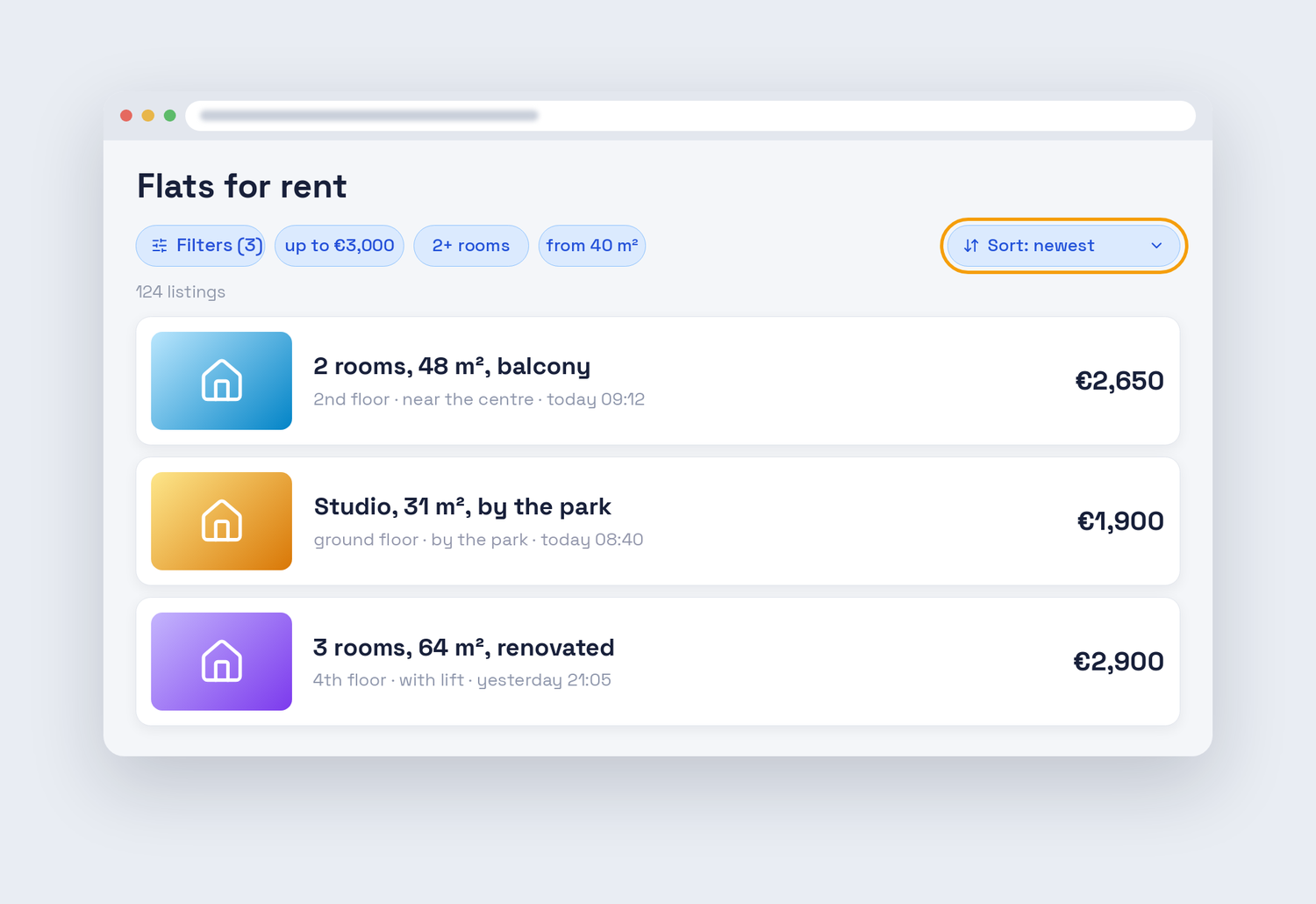
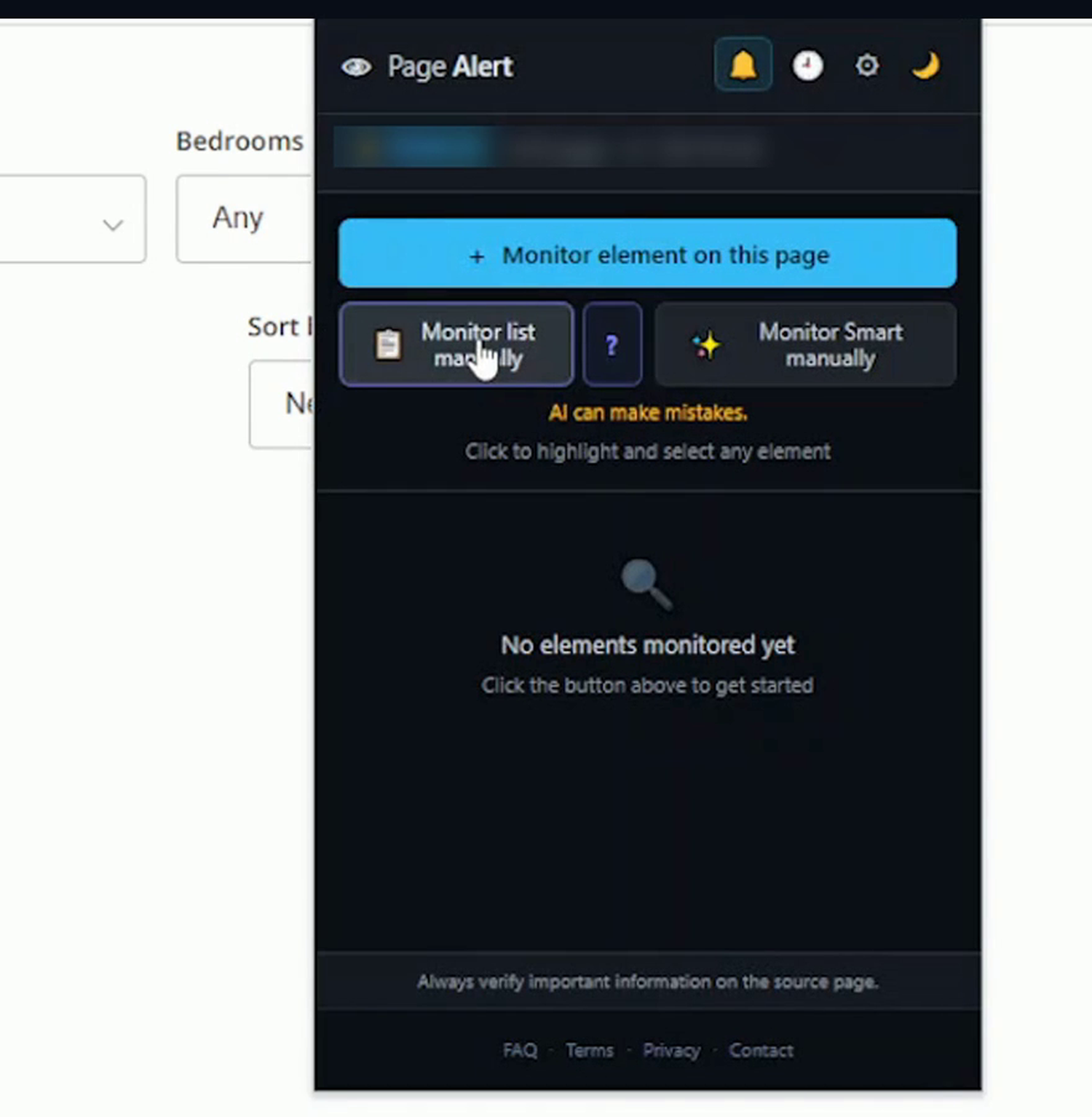
Tom opens the portal and sets the filters: at least two rooms, rent up to €3,000, at least 40 m². He sorts the results from newest. Then he clicks the Page Alert icon and chooses "Monitor list manually".
Page Alert asks him to point at two different items from the same list. Tom clicks the first listing, the whole card with the photo and the price, and then the second one right next to it. The selected listings get the numbers 1 and 2. From this, Page Alert recognizes the repeating list. From now on, it will watch what is added to it and what disappears.
In the preview, Tom sees how many listings Page Alert has found on the list, and their titles. He changes the label to "Flats", saves the alert and closes the portal.
That evening at dinner, nobody reaches for a phone.
The next day
At 7:55, a notification pops up on Tom's laptop. The title shows the label "Flats", and below it Page Alert says that two items have been added to the list, with the titles of the new listings.
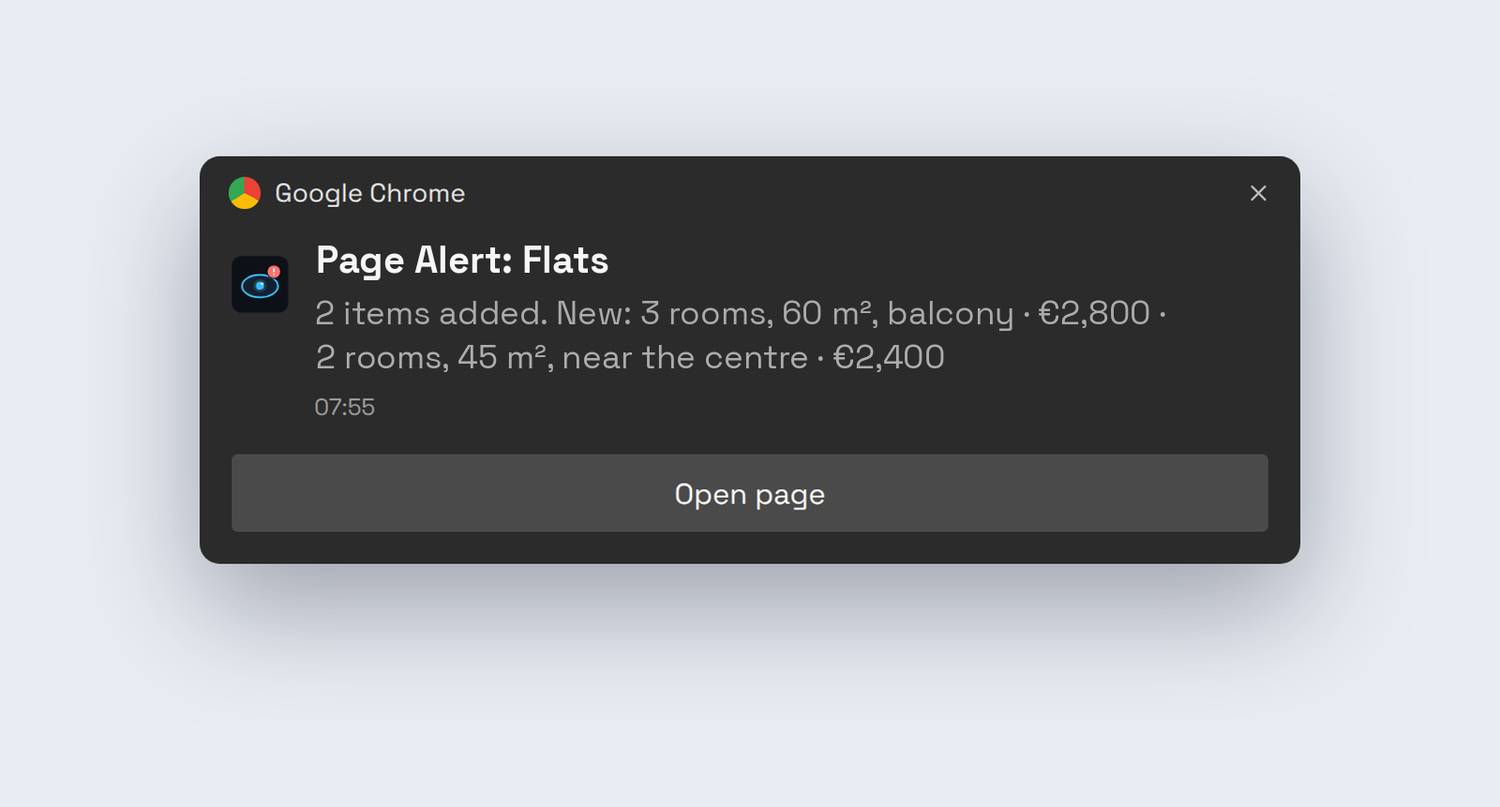
Tom clicks, and he is on the portal. The first listing, three rooms for €2,800, is too big and too expensive for them. The second one is perfect: two rooms, 45 m², close to the city centre, €2,400. Added half an hour ago.
At 8:00, Tom calls. He is the first. That evening they view the flat, and on Saturday they sign the contract.

What else the list shows you
Monitor List notices not only new listings, but also the ones that disappear. After a few days, Tom and Kate know more about the market than they ever learned from scrolling. They can see which flats disappear within hours and which stay up for weeks. That is a good hint about how much it is really worth paying.
Step by step
Step 1. Open a page with a list, for example search results.
Step 2. Set your filters and sort the results from newest.
Step 3. Click the Page Alert icon, then "Monitor list manually". The question mark next to the button shows a short guide.
Step 4. Click two different items from the same list, ideally right next to each other. Select whole cards, not just a title or a price. The selected items get the numbers 1 and 2.
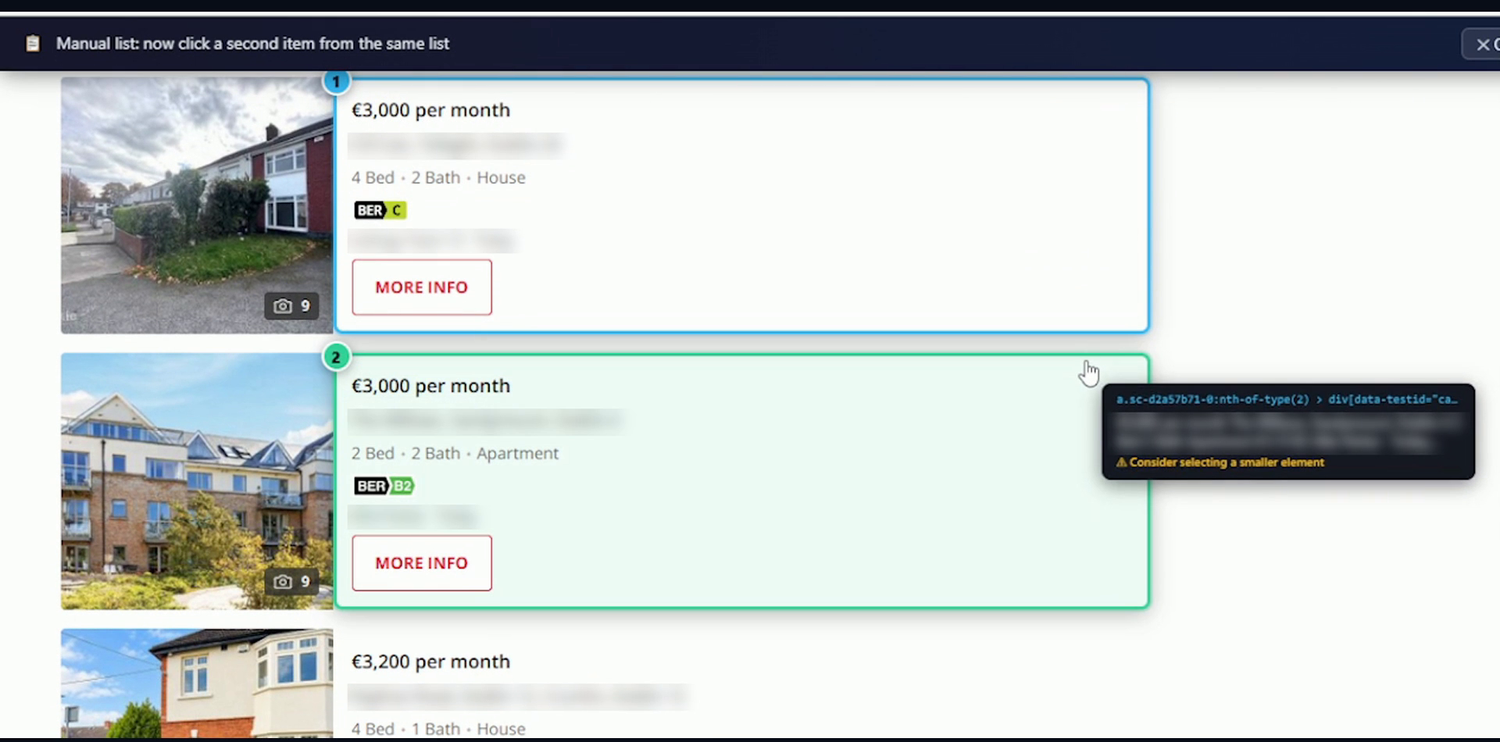
Step 5. Check the preview: you will see how many items Page Alert has found on the list. Add to the label or type your own.
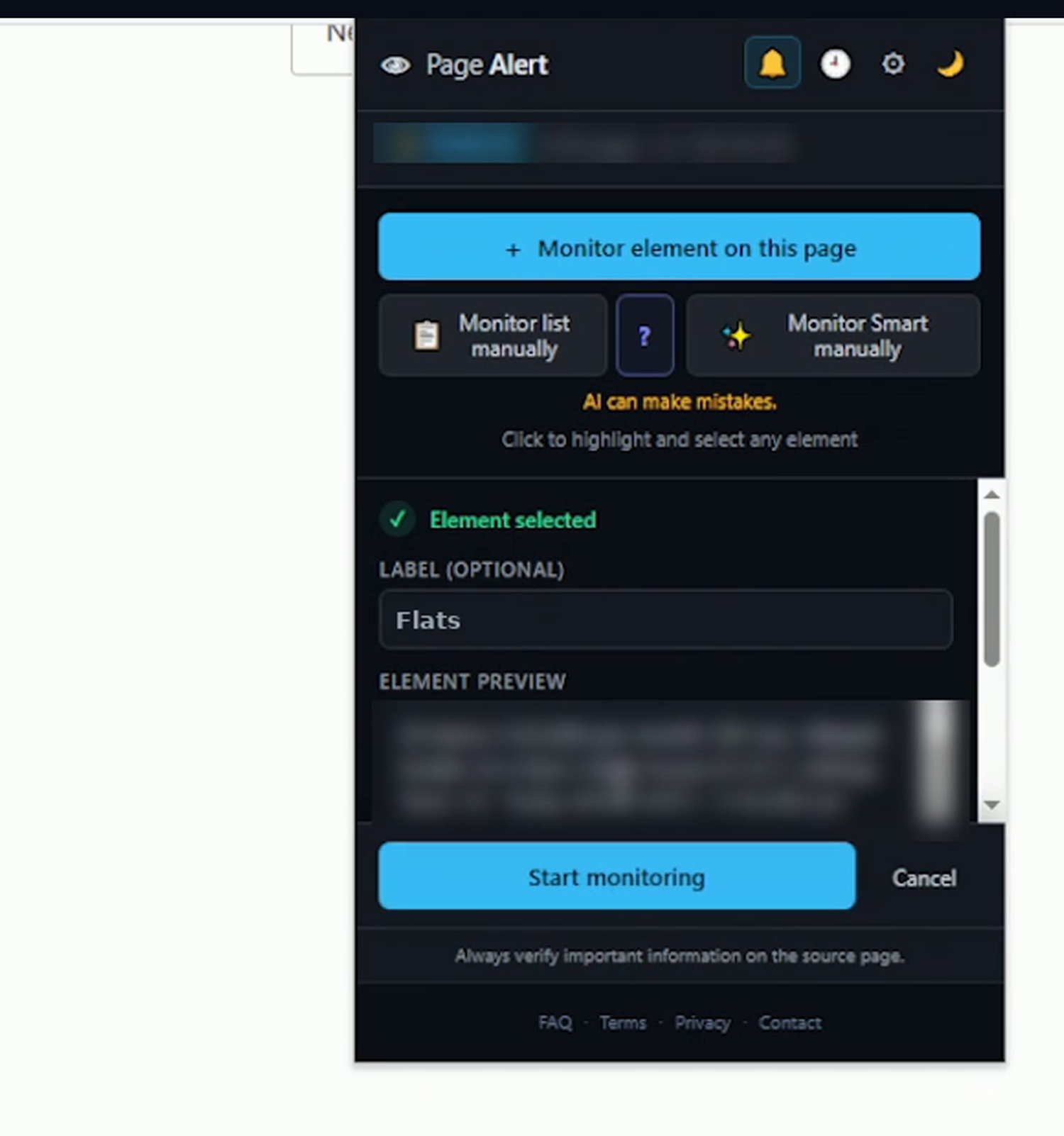
Step 6. Save the alert and close the page.
Step 7. On the alert card, you will see how many items Page Alert is watching. That is also where you choose how often it checks the list.
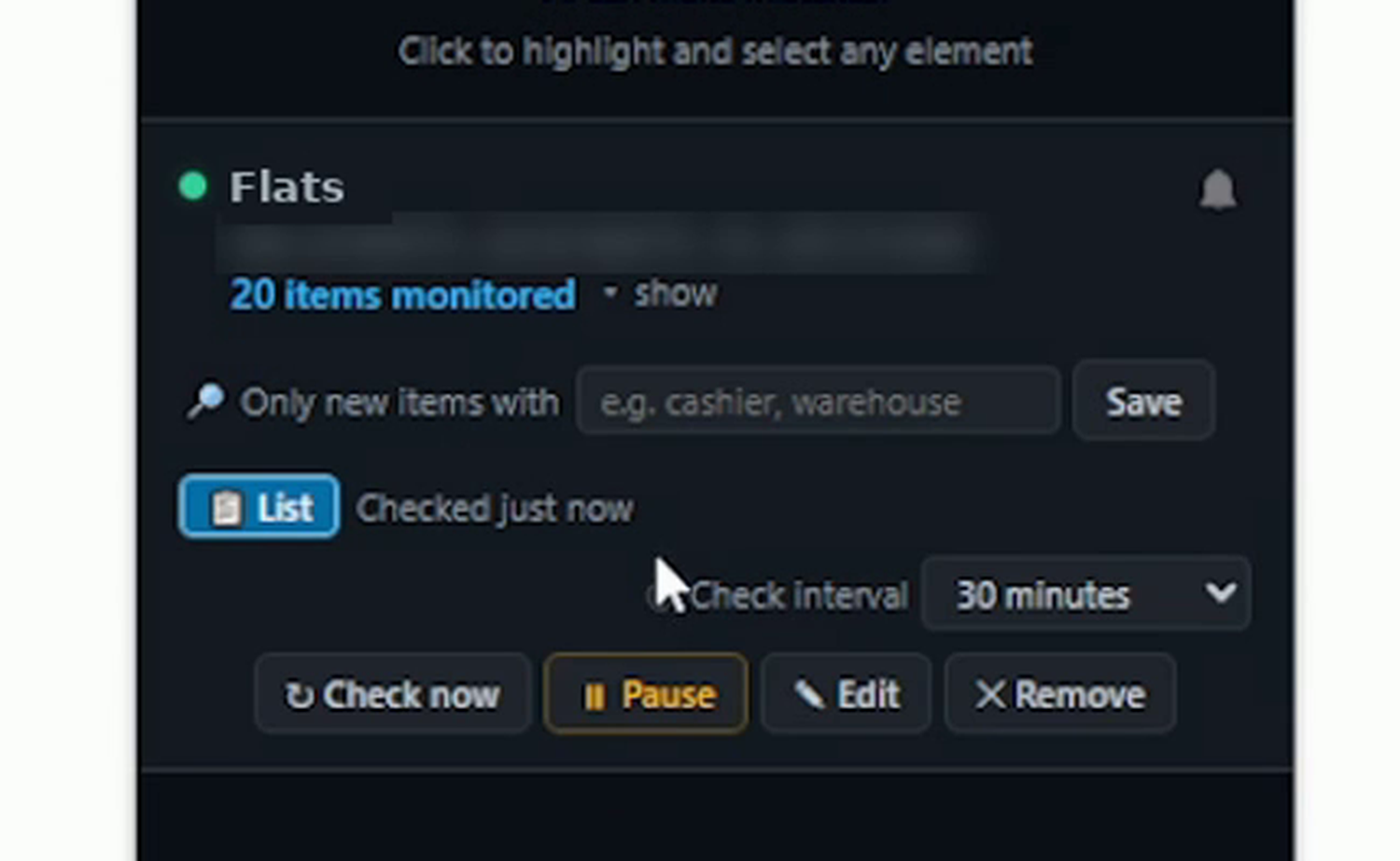
Tip: set your filters first and the alert second. Page Alert watches the page exactly as you selected it, filters included.
Tip: pick both items from the main list of results, not from a box of recommended listings next to it. Then the alert reacts only to real new items.
Tip: sort from newest. New listings then land at the top of the list and do not drop off the first page before Page Alert notices them.
Where else it works
Monitor List is useful anywhere you are waiting for a new item on a list: new job offers in your field, new auctions for your favourite model, new appointment slots, new entries on a results list, or new announcements on an official website.
Chapter 4. Peter and the dream job

Peter did not know what exactly would change in the job offer he was waiting for. Page Alert read it for him and summed up the change in one sentence.
The problem
Peter has been working as a backend developer for two years, and he is quietly looking for a new job. On a job portal, he has set an alert on the search results for "backend developer", just like Tom and Kate did in chapter 3. He named it "Job offers".
One evening, a notification arrives with the label "Job offers": one item has been added to the list. Its title, the type of work and the salary range are right there. Peter clicks and finds an offer that looks as if it was written for him: an interesting company and the kind of project he has always dreamed of.
But there are two catches. The job is hybrid, with several days a week in the office. Peter lives far away and would like to work fully remote. And the salary range is a bit lower than he expected.
Peter knows that offers like this change. When a company cannot find the right person for a long time, it softens the requirements, raises the pay or agrees to remote work. But you never know what will change, or when. Maybe the requirements. Maybe the salary. Maybe just one sentence in the middle of a long description.
For a week, Peter opens the offer every evening and reads it from top to bottom. And every time, he feels he might have missed something.
The solution
This time, watching one number is not enough. Peter does not know which part will change. He needs someone to read the whole offer and tell him in plain words what is different.
That is what Smart mode is for. Page Alert watches the whole block of content, and when something in it changes, artificial intelligence sums up the change in a few words.
Peter opens the offer, clicks the Page Alert icon and chooses "Monitor Smart manually".
He clicks the title of the offer. Page Alert automatically takes in the whole block of content: the title, the description, the requirements and the conditions. In the preview, Peter can see that the whole offer is there, not just the title. Page Alert suggests a label based on the title. Peter changes it to "Offer: Backend Developer", starts monitoring and closes the page.
Ten days later
On Tuesday morning, a notification arrives. The title shows the name of the offer, and below it, instead of a number, there is a short summary: "Work mode changed from hybrid to fully remote; salary range raised."
Peter opens the offer and checks. Everything matches. That same day he sends his CV, and a week later he is at the interview.
If he had been reading the offer by himself, he could easily have missed that one change, hidden in a long list of conditions.
Step by step
Step 1. Open the page whose content you want to watch.
Step 2. Click the Page Alert icon, then "Monitor Smart manually".
Step 3. Click the title of the content you want to watch. Page Alert will take in the whole block of content by itself.
Step 4. Check in the preview that all the content you care about is there.
Step 5. Add to the label or type your own.
Step 6. Start monitoring and close the page.
Step 7. When the content changes, the alert card shows a short summary of what has changed.
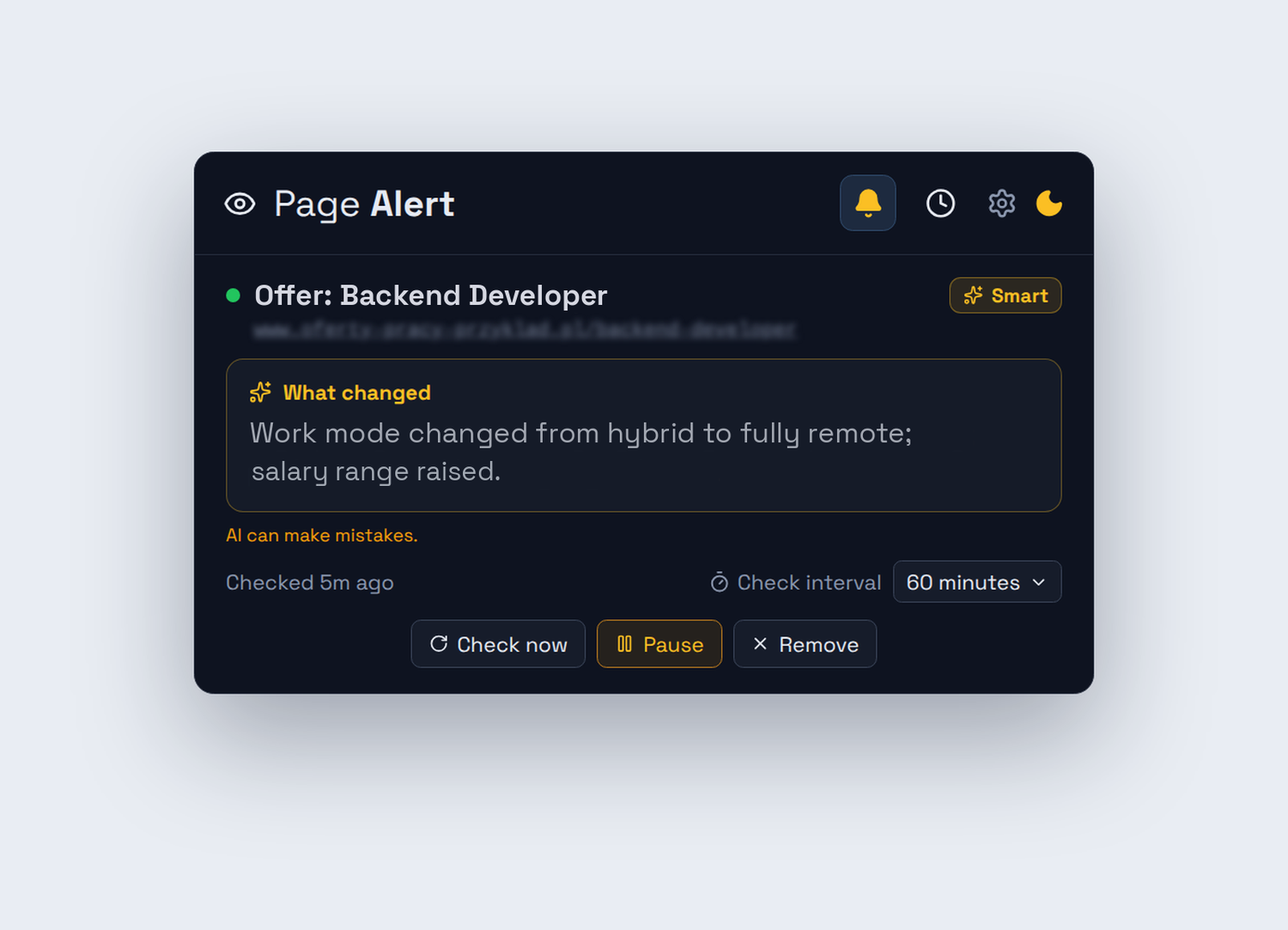
Tip: artificial intelligence can make mistakes. The summary tells you that something has changed, and roughly what. Before any important decision, always check the content on the source page, just like Peter did.
Tip: use Smart when you do not know what will change. When you are waiting for one specific number, like a price, regular element monitoring is enough.
Where else it works
Smart is useful anywhere a change can hide in a long text: a tender announcement, the terms of a promotion, university admission rules, a course description, an official announcement, or the rules of a programme you take part in.
Chapter 5. Maggie and the concert tickets

The tickets for Maggie's favourite band sold out in twenty minutes. Maggie still made it to the concert, because Page Alert was watching one single number: how many tickets were available.
The problem
Maggie has been waiting for this concert for three years. The band will play at the nearby arena only once, on Saturday at 8 pm. On the day the sale opens, Maggie sits at her laptop from early morning, but the website keeps freezing. When it finally loads, all she sees is "Available tickets: 0" and a grey "Sold out" button.
A friend tells her that the organiser sometimes adds a new batch of tickets or puts returned ones back on sale. No warning, at any time of day. First come, first served.
For the next few days, Maggie checks the page at every opportunity: on the tram, in the queue at the shop, before going to sleep. Once she sees four free tickets, but before she manages to click, the counter shows zero again.
The solution
Maggie does not care about the whole page. She cares about one number: how many tickets are available. When it goes up from zero, she needs to know right away.
She opens the ticket page, clicks the Page Alert icon and chooses "Monitor element on this page". She hovers over the number of available tickets. In the tooltip, she can see that Page Alert has recognized a counter, not a price or a date.
Maggie clicks. She changes the label to "Concert tickets" and starts monitoring. She leaves the check interval at 60 minutes.
Monday, 7:42
Maggie is having breakfast, with her laptop open on the kitchen table. Suddenly a notification pops up in the corner of the screen with the label "Concert tickets": the value has changed from 0 to 150. The organiser has added a new batch of tickets.
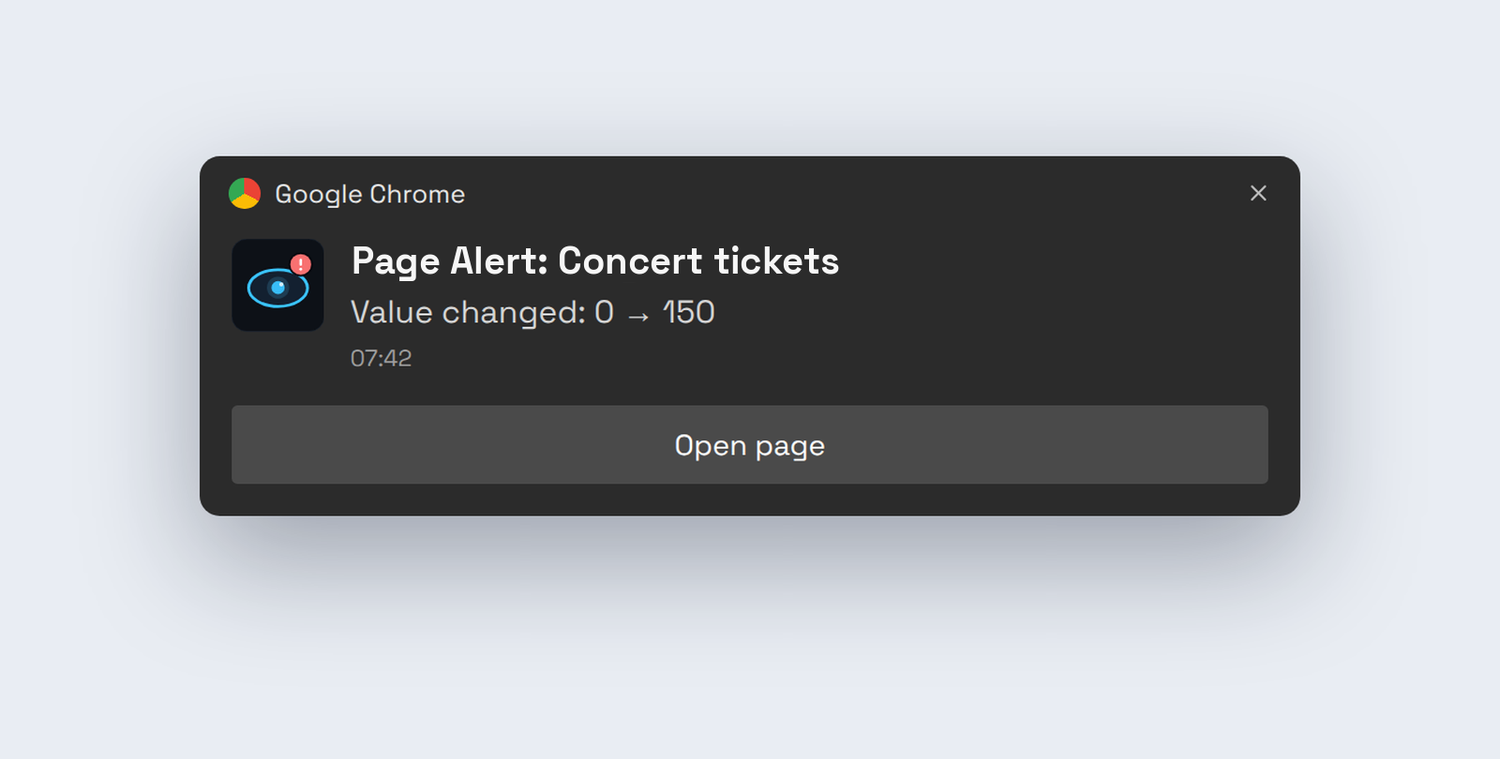
Maggie clicks "Open page" and she is on the ticket page. Two tickets go into the basket, and a minute later they are paid for. Maggie gets on the tram with a big smile. By the evening, the whole new batch is sold out.
The alert card keeps a record of it all: starting value 0, current value 150, a difference of plus 150, and the last change today at 7:42.
A month later, Maggie is standing right in front of the stage. At the very first song, she has tears in her eyes.

Step by step
Step 1. Open the page with the number you want to watch.
Step 2. Click the Page Alert icon, then "Monitor element on this page".
Step 3. Hover over the number. Check in the tooltip that Page Alert has recognized it as a counter.
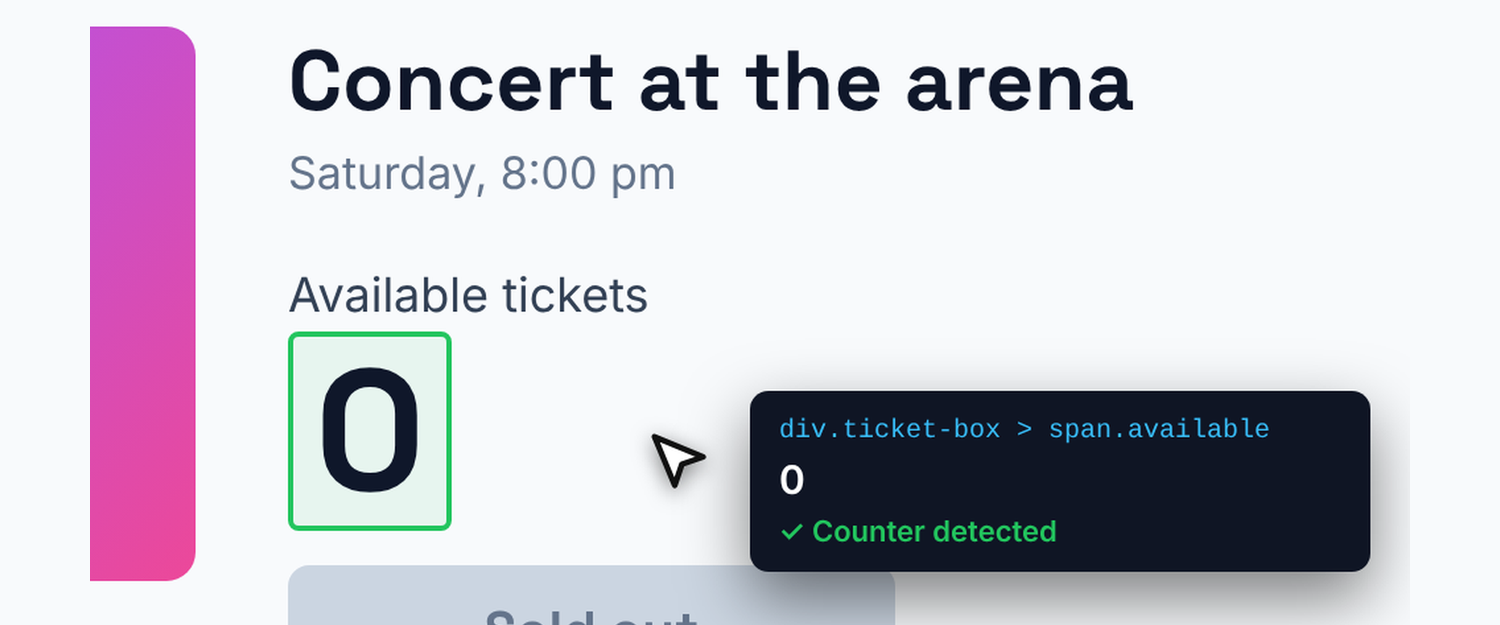
Step 4. Click the number.
Step 5. Add to the suggested label or type your own.
Step 6. Start monitoring and close the page.
Step 7. When the number changes, the alert card shows the starting value, the current value and the difference.
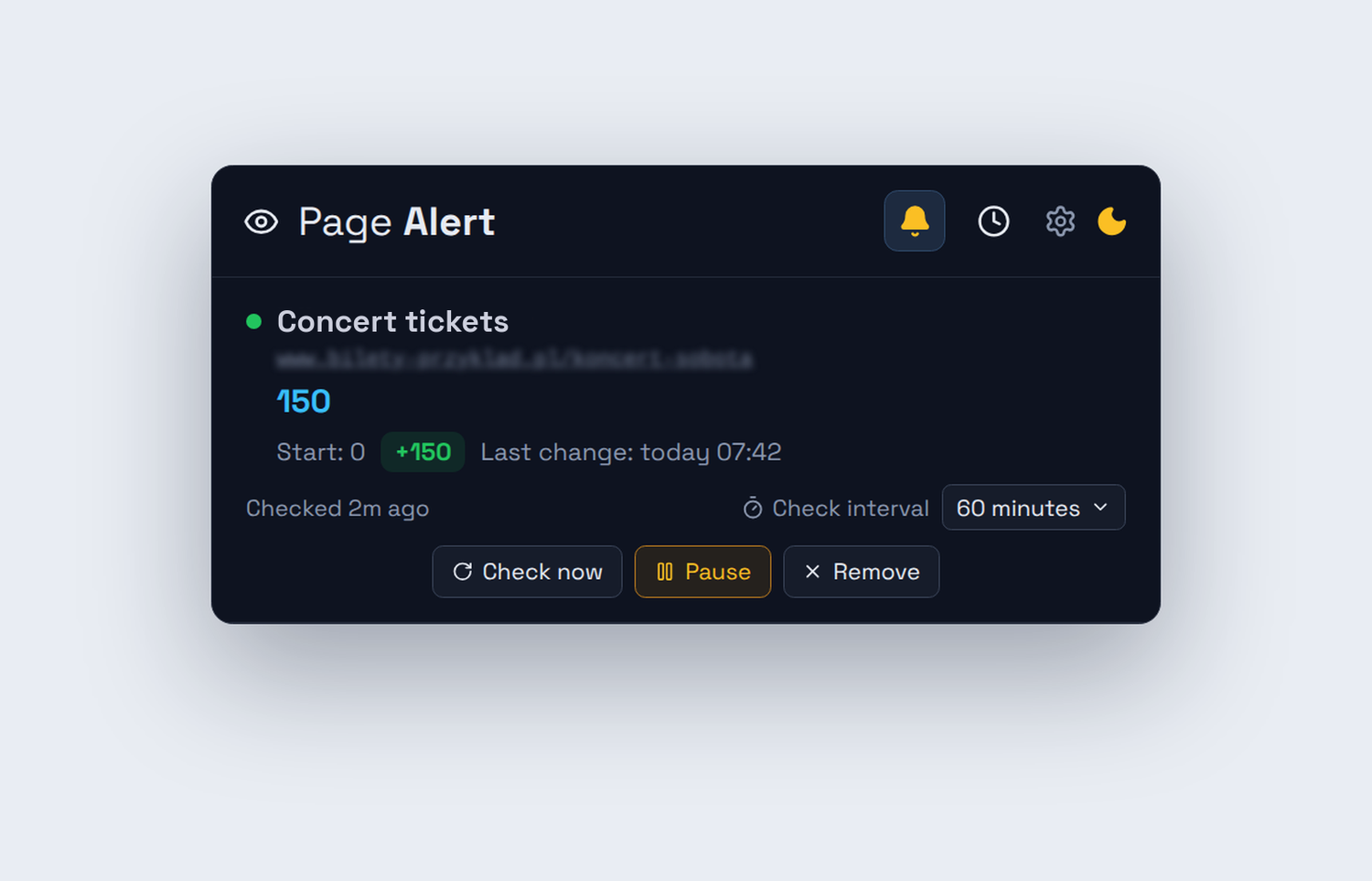
Tip: select only the number, not the whole row with the description and the price. That way, the alert reacts only to a change in the number of tickets.
Tip: Page Alert can tell a counter from a price and from a temperature, so the notification tells you clearly that a number has changed. For example: "Number of ratings changed from 111 to 114".
Waiting for something too? Set up your first alert: Chrome Web Store · Microsoft Edge Add-ons.
Where else it works
A counter is useful anywhere you are waiting for a number to change: free places in your child's classes, free appointment slots, how many items are left in stock, how many job offers there are in your field, or how many reviews your own product has.
Chapter 6. Paul, the journalist

Paul combined two Page Alert modes. And he wrote a story about a change the city hall made quietly, before anyone else noticed it.
The problem
Paul writes for a local news portal. His beat is the city hall: announcements, resolutions, changes in fees. In this job, being first is what counts.
Every morning, Paul opens a dozen pages. The list of the city hall's press releases. Draft resolutions. The terms of service of a city service used by thousands of residents. Announcements about public consultations. Most days, nothing changes. But when he misses something once, the next day he reads about it on a competitor's site.
The worst are the quiet changes. The city hall does not always announce that it has updated its rules. Sometimes it simply swaps one sentence in a long document on its website.
Two modes, two tasks
Paul splits his pages into two groups.
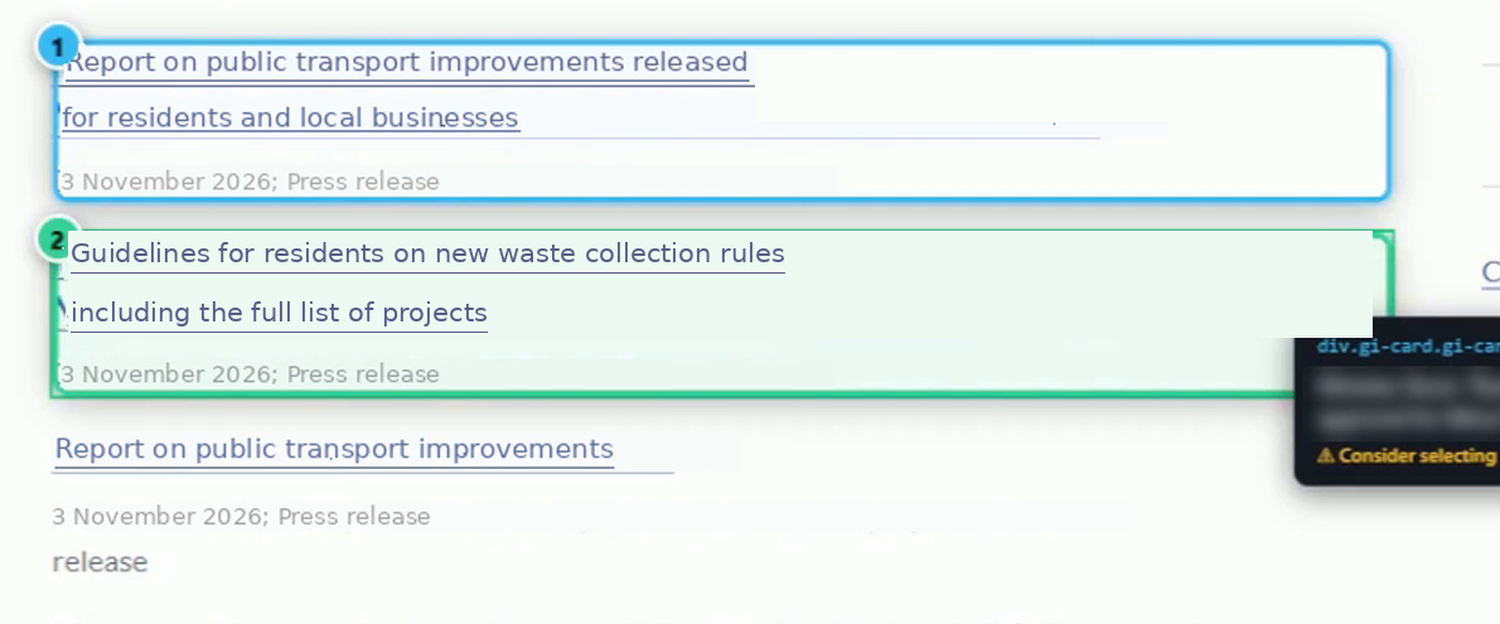
The first group is lists: press releases and consultation announcements. Here, the question is whether a new item has appeared. That is what Monitor List is for, just like for Tom and Kate in chapter 3. Paul clicks the Page Alert icon, chooses "Monitor list manually" and selects two press releases right next to each other. Page Alert recognizes the list, and from now on it watches what is added to it.
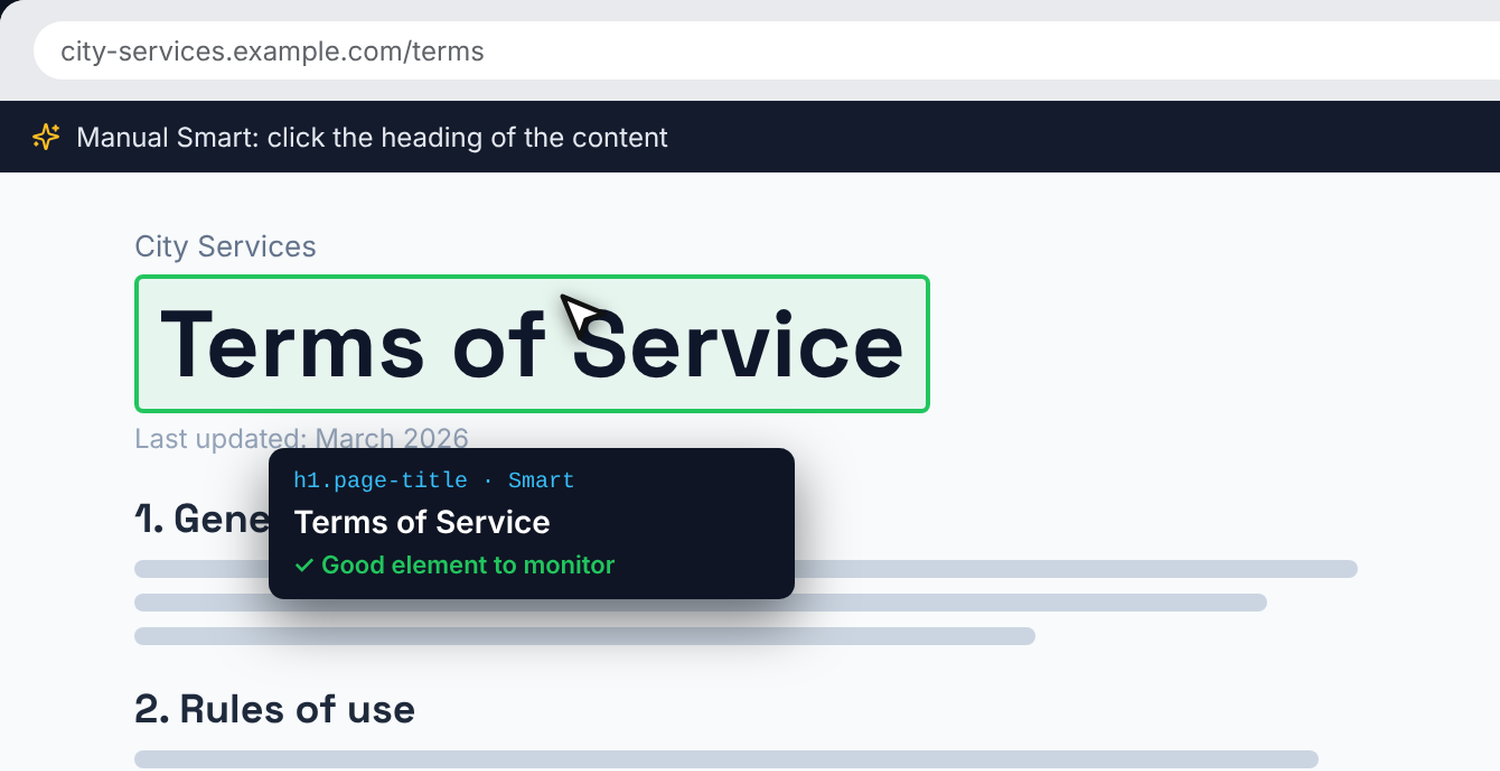
The second group is long texts, above all the terms of service of that city service. Here, Paul does not know what will change. He needs Smart mode, just like Peter in chapter 4. He chooses "Monitor Smart manually" and clicks the title "Terms of service". Page Alert takes in the title and all the content below it.
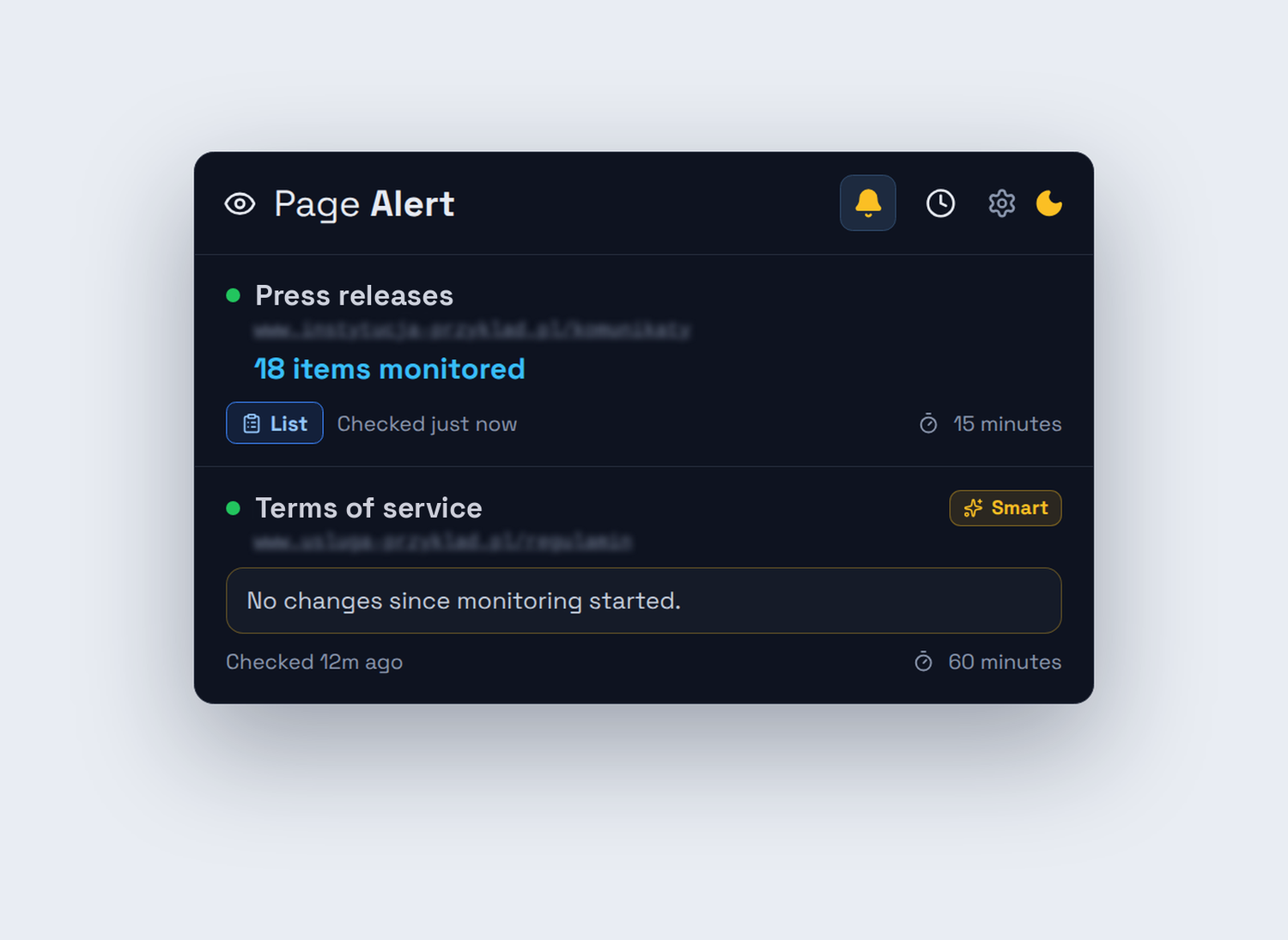
After a quarter of an hour, Paul's pages are taken care of. Each alert has a label that tells him right away what it is about: "Press releases" and "Terms of service".
Wednesday, 11:37
A notification arrives with the label "Terms of service" and a summary: "A clause on data processing by partners has been added; the complaint period has been shortened from 30 to 14 days."
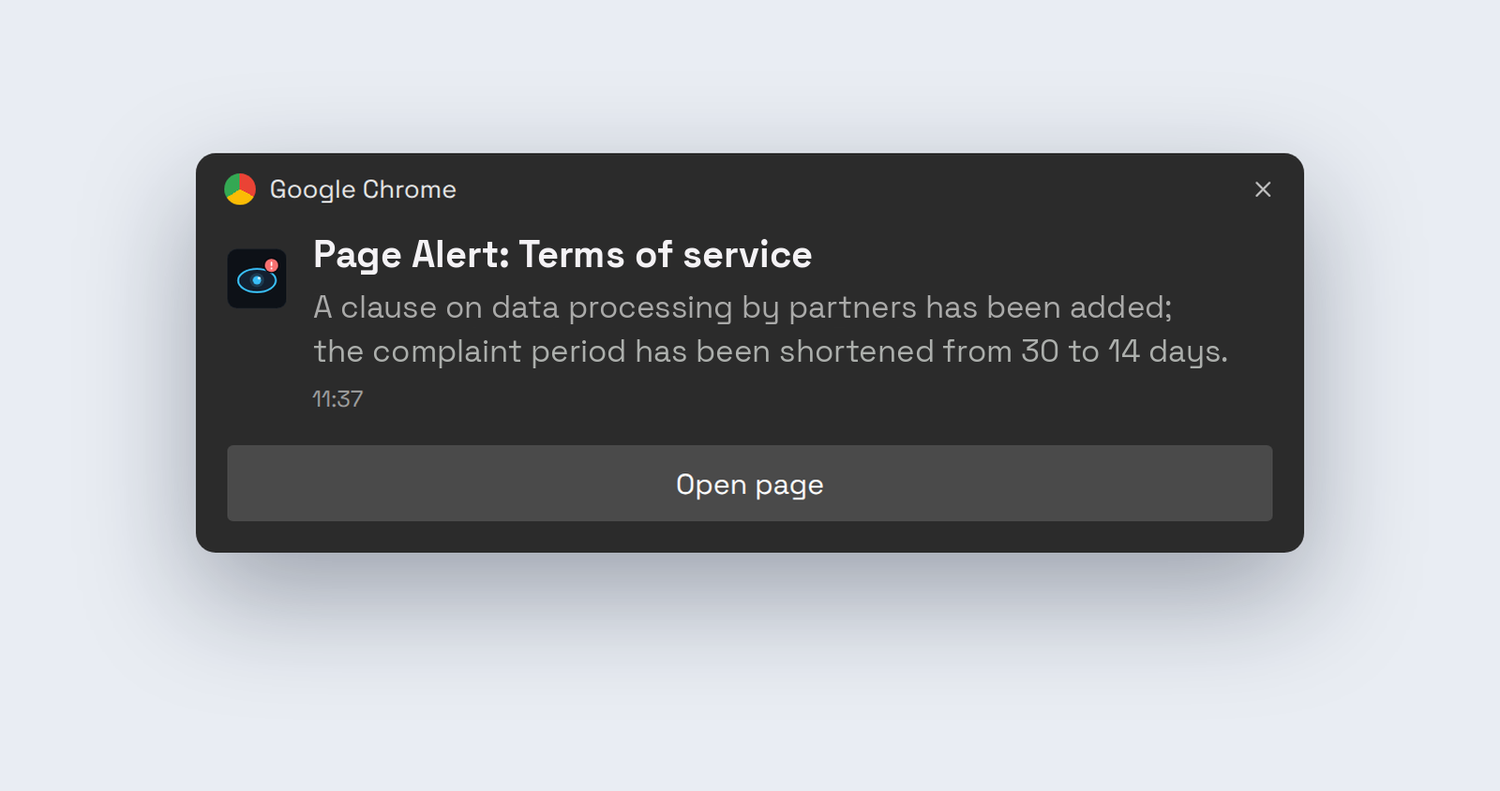
On the press release list, there is not a single word about this change. Paul opens the terms and checks the change at the source, because he knows that an AI summary is only a signal, not finished information. Everything matches. He calls the press office for a comment. At 6 pm, his story is on the portal's front page.
A new laptop
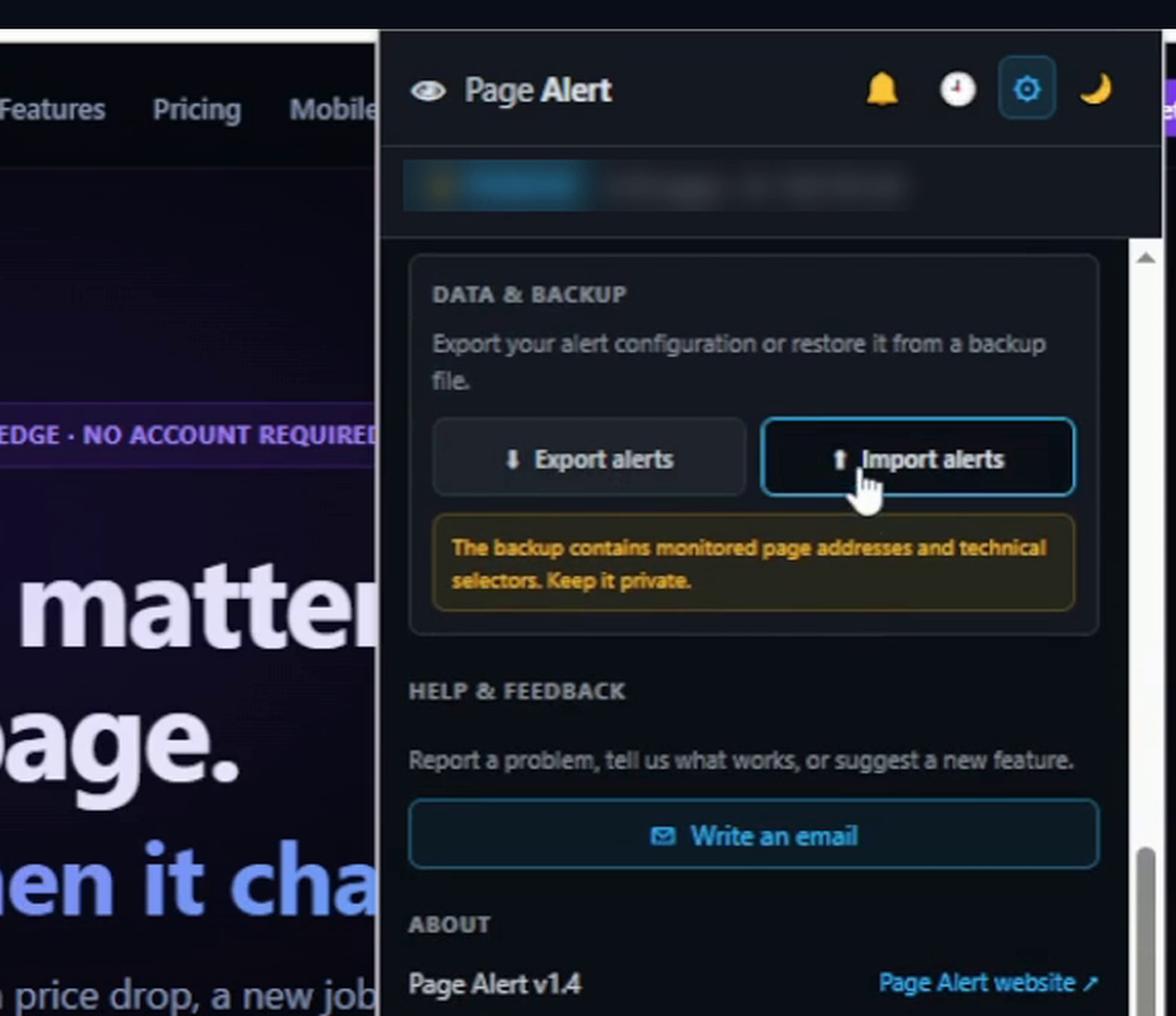
A month later, the newsroom gives Paul a new computer. He does not want to set up all his alerts again. In the Page Alert settings, he clicks "Export alerts" and saves a file with his alerts. On the new laptop, he installs Page Alert, clicks "Import alerts" and selects that file. A minute later, everything works just like before, with the same labels.
No login and no password to remember. No account: one file with your alerts is all it takes.
Step by step
The list of announcements. Click the Page Alert icon, then "Monitor list manually", and select two announcements right next to each other, just like in chapter 3.
The terms of service. Click "Monitor Smart manually" and click the title of the document, just like in chapter 4. Page Alert takes in the title and all the content below it.
Both alerts on your list. The list card shows how many items Page Alert is watching, and the Smart card shows whether anything in the text has changed.
Moving your alerts to another computer:
Step 1. On your old computer, open the Page Alert settings.
Step 2. In the backup section, click "Export alerts" and save the file.
Step 3. Move the file to your new computer, for example on a USB stick or by emailing it to yourself.
Step 4. On the new computer, install Page Alert and open the settings.
Step 5. Click "Import alerts" and select the saved file.
Tip: give your alerts short, clear labels. When you have several, the notification tells you right away which page it is about.
Tip: export your alerts from time to time, even if you are not changing computers. It is a simple backup. The file contains the addresses of the pages you watch, so keep it private.
Where else it works
Combining a list with Smart is useful for anyone who follows an institution: a teacher who keeps an eye on announcements from the education board, a student who follows notices from the dean's office and changes in the study regulations, or a city councillor who wants to know about every new resolution and every amendment to its text.
Chapter 7. Helen and the frost

Helen saved her tomato seedlings from a May frost, and she did not have to check the weather forecast every hour.
The problem
Helen has a small allotment garden just outside town, and she has been growing tomatoes there for thirty years. This year, she raised the seedlings from her own seeds. In mid-May, she planted them out, prouder than ever.
But she knows that May can be treacherous. One cold night is enough, and by morning all the seedlings turn black. If a frost is forecast, she has to drive to the garden in the evening and cover the plants with garden fleece.
The forecasts change from hour to hour. In the morning they promise 8 degrees at night, in the afternoon it is already 5. Helen opens the weather page on her laptop several times a day, and she keeps worrying that she will miss something.
The solution
Her grandson tells her about Page Alert over the phone. Helen asks straight away: "Do I have to register somewhere? Because I already have far too many passwords." She does not. No account, no email, no password.
Helen installs Page Alert by herself, step by step, just like in chapter 1. She opens the weather forecast for the place where her garden is, clicks the Page Alert icon and chooses "Monitor element on this page".
She hovers over the forecast temperature for the night. In the tooltip, she can see that Page Alert has recognized a temperature, not a price or a counter.
She clicks. She changes the label to "Night temperature", starts monitoring and closes the page. The whole thing takes her less time than making a cup of tea.
Thursday evening
At 5:10 pm, Helen is peeling potatoes for dinner. Her laptop is switched on, on the kitchen table. A notification pops up in the corner of the screen with the label "Night temperature": the value has changed from 3°C to −2°C.
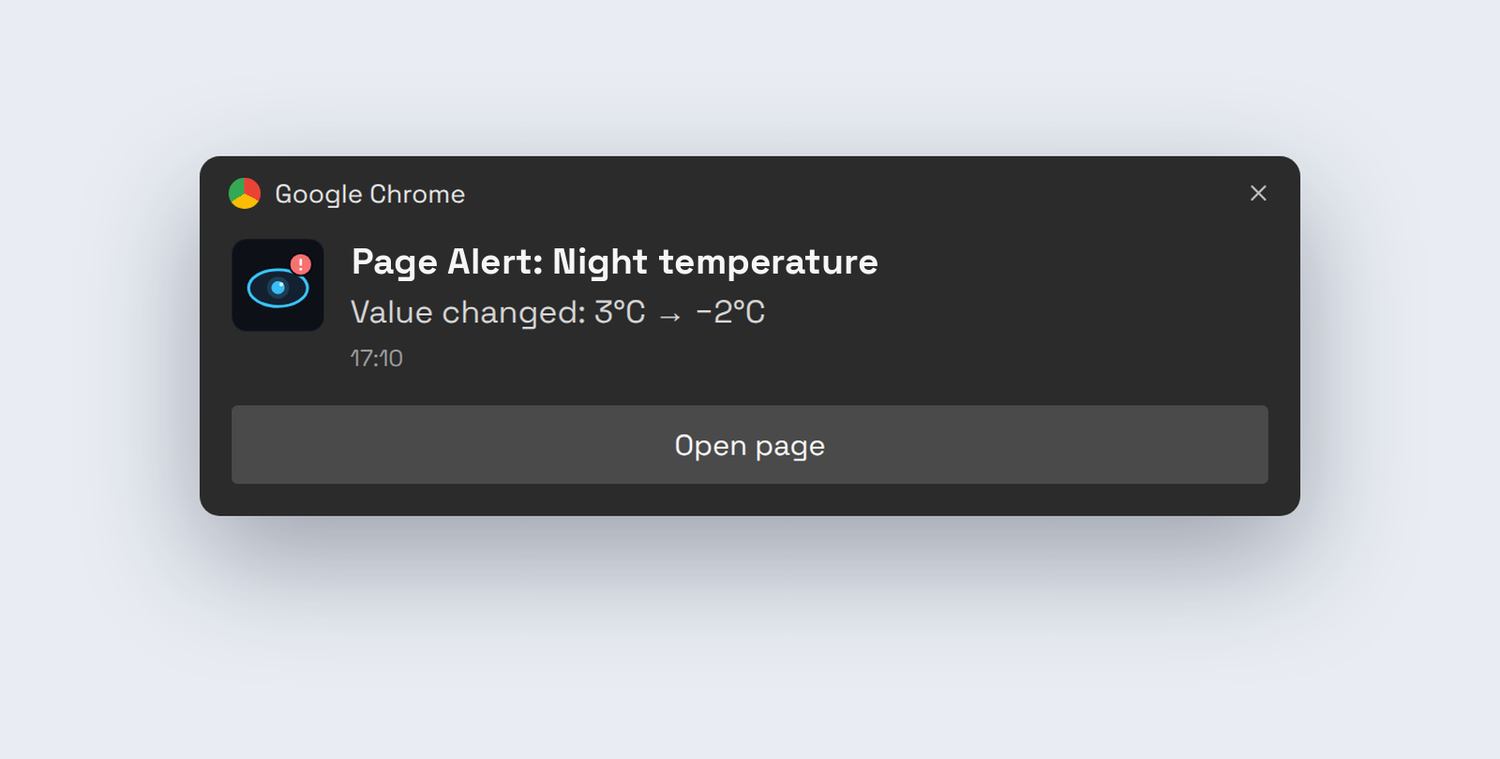
Helen leaves the potatoes, calls her neighbour from the next garden plot, and together they drive out to cover the seedlings. In the morning, the whole garden is white with frost, but the tomatoes under the garden fleece are doing just fine.

On the alert card, Helen can see the whole story of that night: starting value 3°C, current value −2°C, a difference of minus 5°C, and the last change at 5:10 pm.
Step by step
Step 1. Open the weather forecast for the place you care about.
Step 2. Click the Page Alert icon, then "Monitor element on this page".
Step 3. Hover over the temperature. Check in the tooltip that Page Alert has recognized it as a temperature.
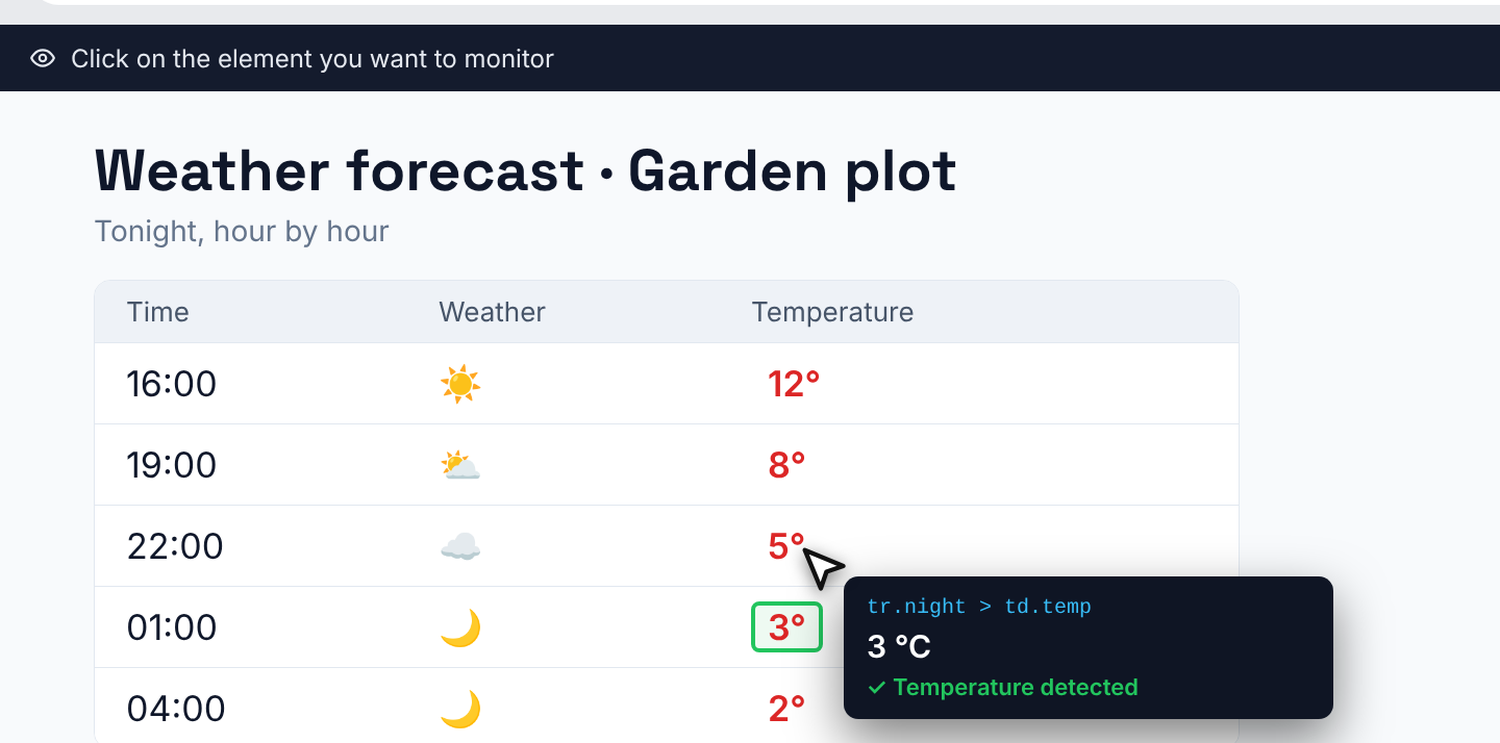
Step 4. Click the temperature.
Step 5. Add to the suggested label or type your own.
Step 6. Start monitoring and close the page.
Step 7. When the temperature changes, the alert card shows the starting value, the current value and the difference.
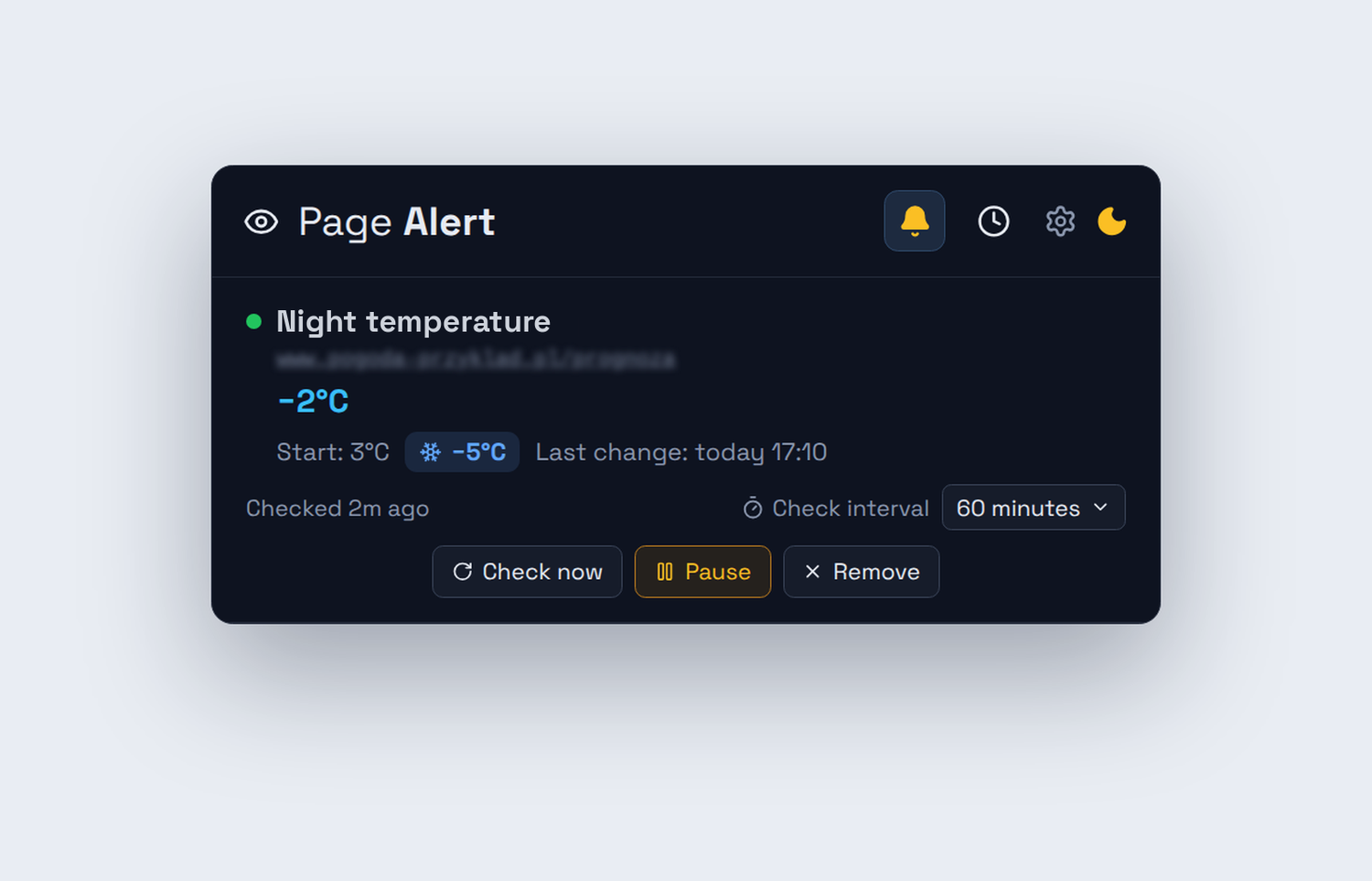
Tip: choose the temperature for the night, not the current one. The current temperature changes all day long, but what you care about is what happens after dark.
Tip: some pages show the temperature and the feels-like temperature side by side. Page Alert can tell them apart. Select the one that matters to you.
Tip: if you want to get a notification like this even when you are away from your computer, take a look at chapter 8.
If Helen could do it, so can you. Page Alert installs without an account: Chrome Web Store · Microsoft Edge Add-ons.
Where else it works
You can watch any value that depends on the weather or on nature in the same way: the water level of a nearby river, air quality, pollen levels if you have allergies, the water temperature of a lake before the holidays, or the wind forecast before you go sailing.
Chapter 8. A phone in your pocket

Anna, from chapter 2, connected Page Alert to her phone. The next notification she felt in her pocket, on her way to lunch.
The problem
Remember how Anna missed the perfume notification because she was in the middle of a presentation? That time, the notification history saved her. But Anna knows that next time, the sale might be over before she gets back to her computer.
This time, Anna wants the same perfume for herself. Her alerts from chapter 2 are still running. But her laptop stays at home, and Anna spends her days at work, on the move and out in town.
The solution
Page Alert has an app for your phone. You do not need to look for it in an app store. You open it in your phone's browser and connect it to your computer with a single code. Everything about it is described on the page Page Alert on your phone.
On her laptop, Anna opens the Page Alert settings. In the mobile app section, she clicks "Connect and sync". Page Alert shows an eight-character pairing code, valid for about ten minutes.
Anna opens the Page Alert app in her phone's browser, types the code into the "Pairing code" field and taps "Connect". Done. No account, no email and no password, on the phone too.
On her phone, Anna sees the same alerts as on her laptop. At the top, there is the header, the tabs and the notifications. At the bottom, the links and the option to disconnect. Only the list of alerts scrolls in between.
Two things in the phone settings
Connecting alone does not switch on notifications on the phone yet. Anna turns them on separately in the app, and then she does two more things.
First, she adds the Page Alert app to her home screen. That way, it opens like a regular app, with one tap. On some phones, notifications only work after you add it like this.
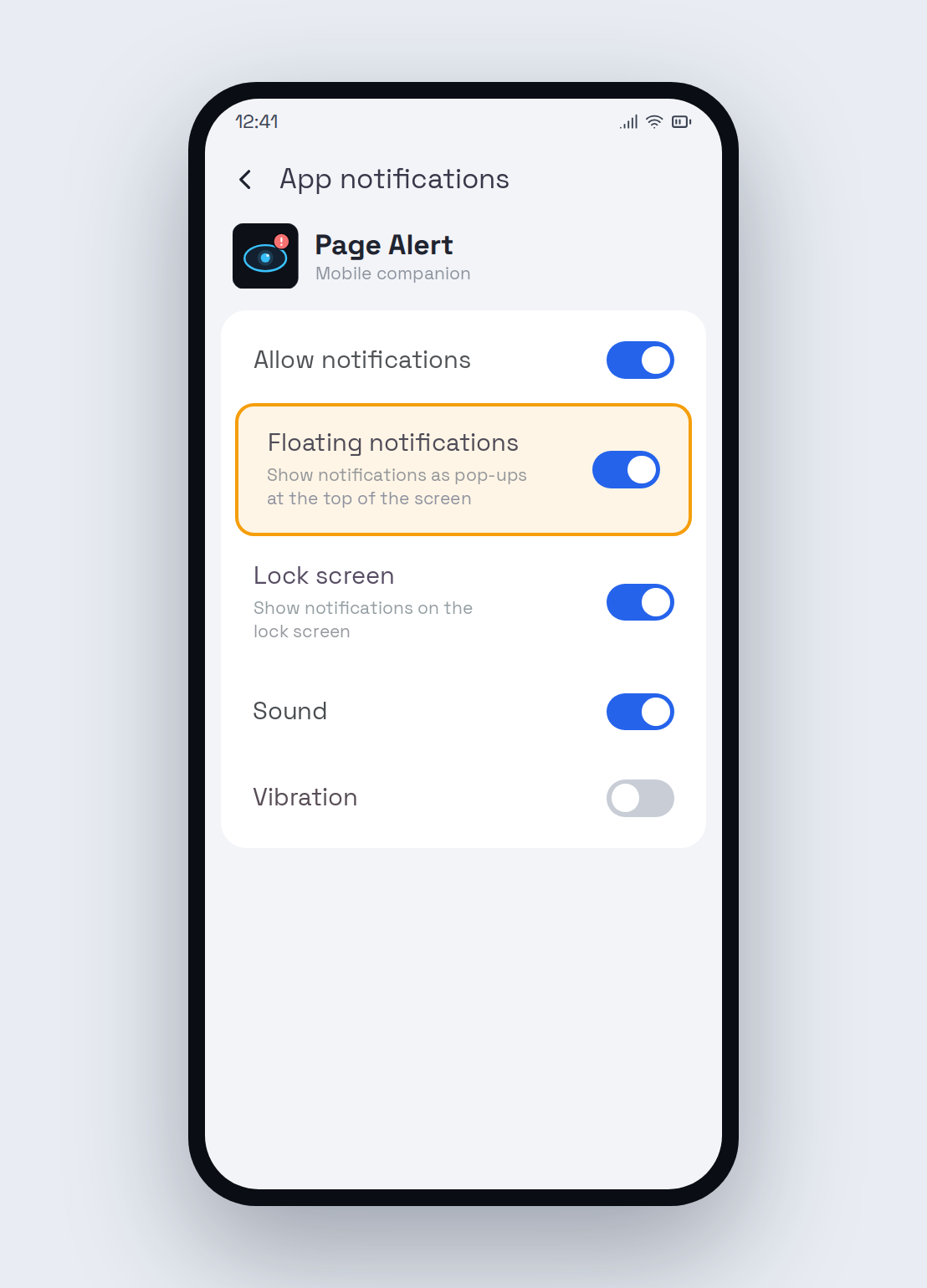
Then, in her phone's notification settings, she turns on the option that makes Page Alert notifications pop up at the top of the screen instead of hiding in the notification list. On Anna's phone, this option is called "floating notifications". On other phones it may have a different name, for example "pop-up notifications".
Thursday, 12:41
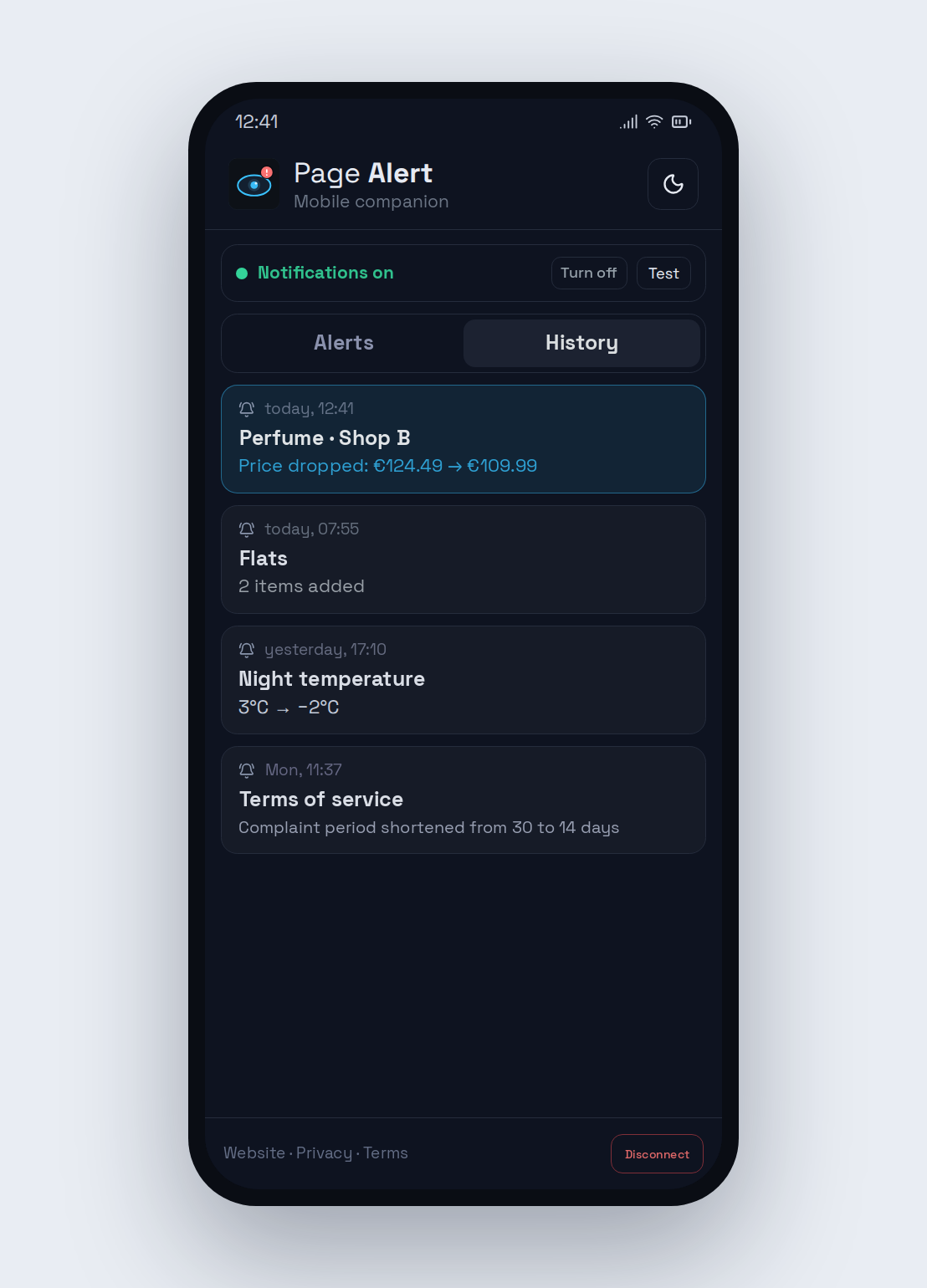
On Thursday at 12:41, Anna is walking down the street to lunch. Her phone vibrates in her pocket. On the lock screen: "Perfume · Shop B", the price dropped from €124.49 to €109.99. Another sale.
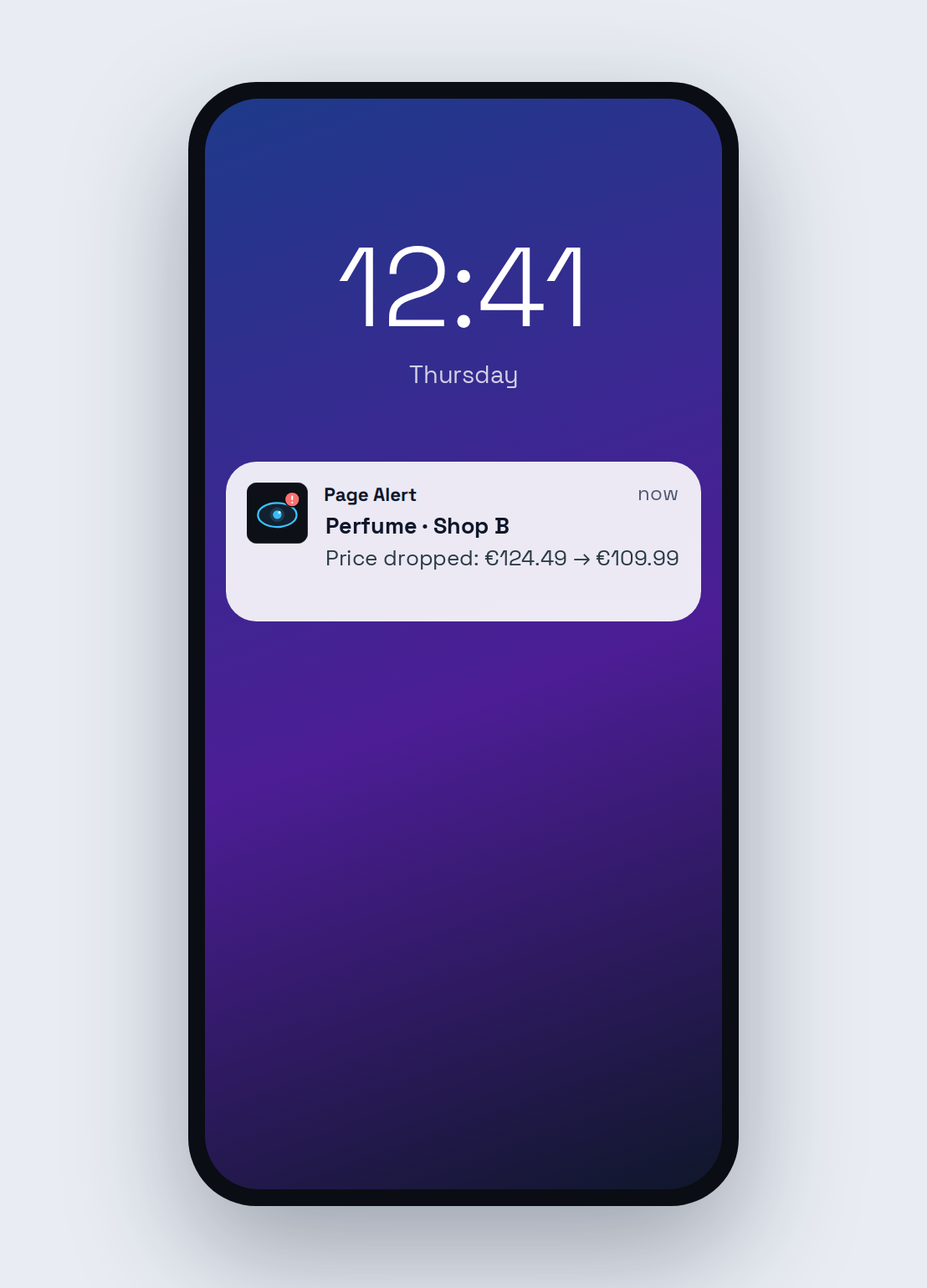
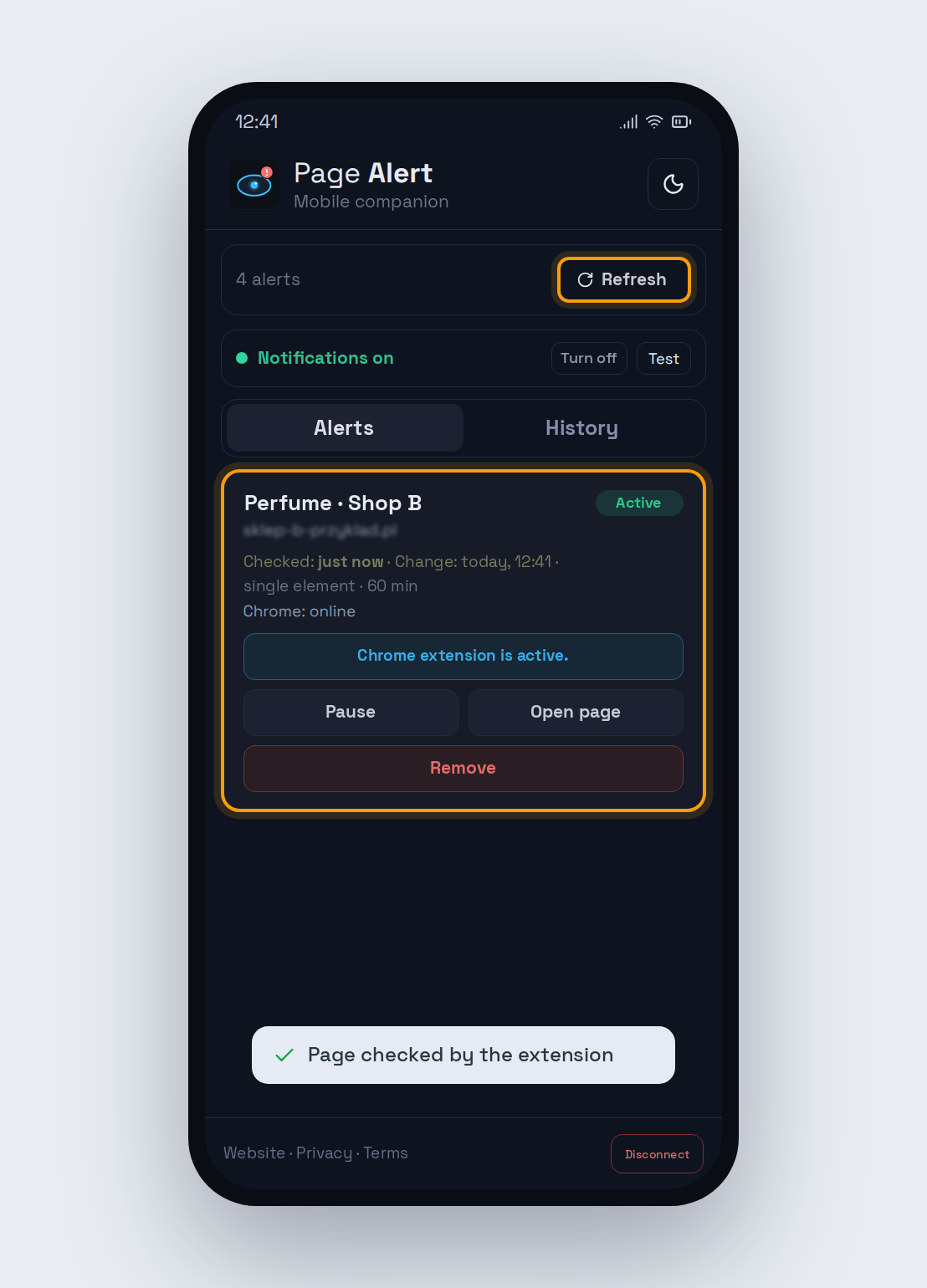
Anna wants to be sure the price is still valid. She opens the app, taps "Refresh" and sees the latest state on the Shop B card: still €109.99. Her laptop at home is switched on, so Page Alert keeps watching the page for her. Anna orders the perfume from her phone before she even reaches the café.
In the evening, she takes one more look at the notification history on her phone. Everything is there, just like on her laptop.
Important: your phone receives the notifications, but the pages are checked by Page Alert in the browser on your computer. For notifications to arrive, your computer must be switched on and your browser must be running. The "Refresh" button at the top of the app loads the latest state of your alerts and history, but it does not check pages by itself.
Step by step
Step 1. On your computer, open the Page Alert settings. In the mobile app section, click "Connect and sync".
Step 2. Page Alert shows an eight-character pairing code, valid for about ten minutes.
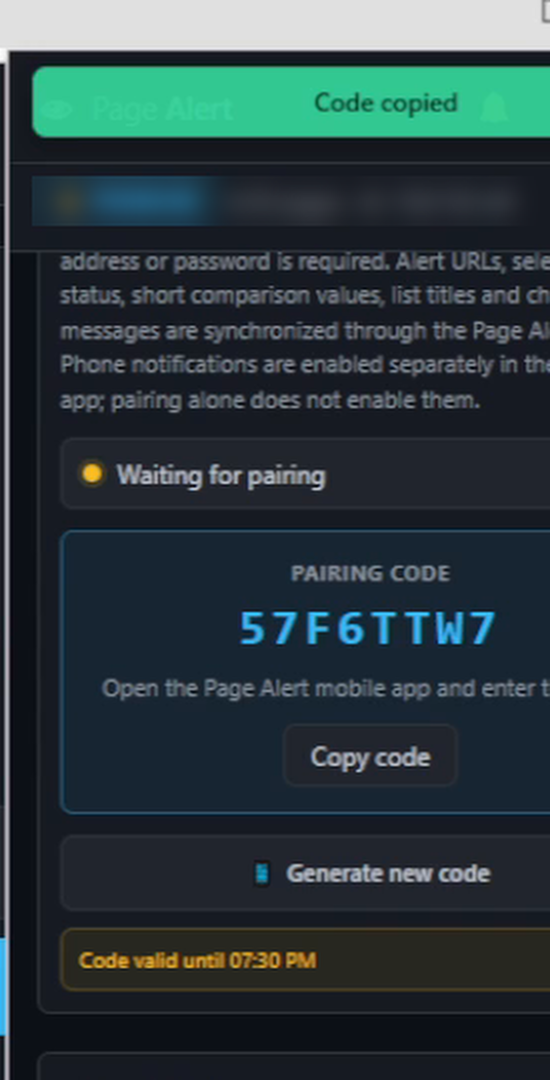
Step 3. On your phone, open the Page Alert app in the browser. Type the code into the "Pairing code" field and tap "Connect".
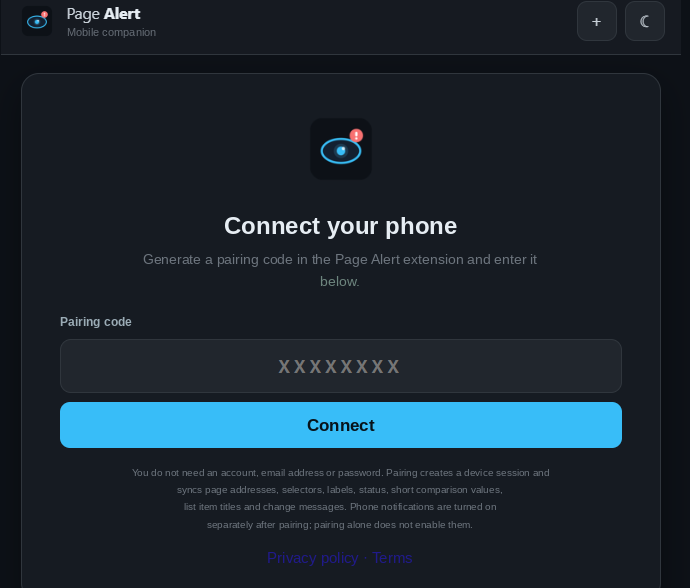
Step 4. Add the app to your phone's home screen.
Step 5. Turn on notifications in the app, because connecting alone does not switch them on. Then, in your phone settings, turn on pop-up notifications for Page Alert, so they appear at the top of the screen. Depending on your phone, this option may be called, for example, "floating notifications".
Step 6. Done. On your phone, you now see the same alerts as on your computer.
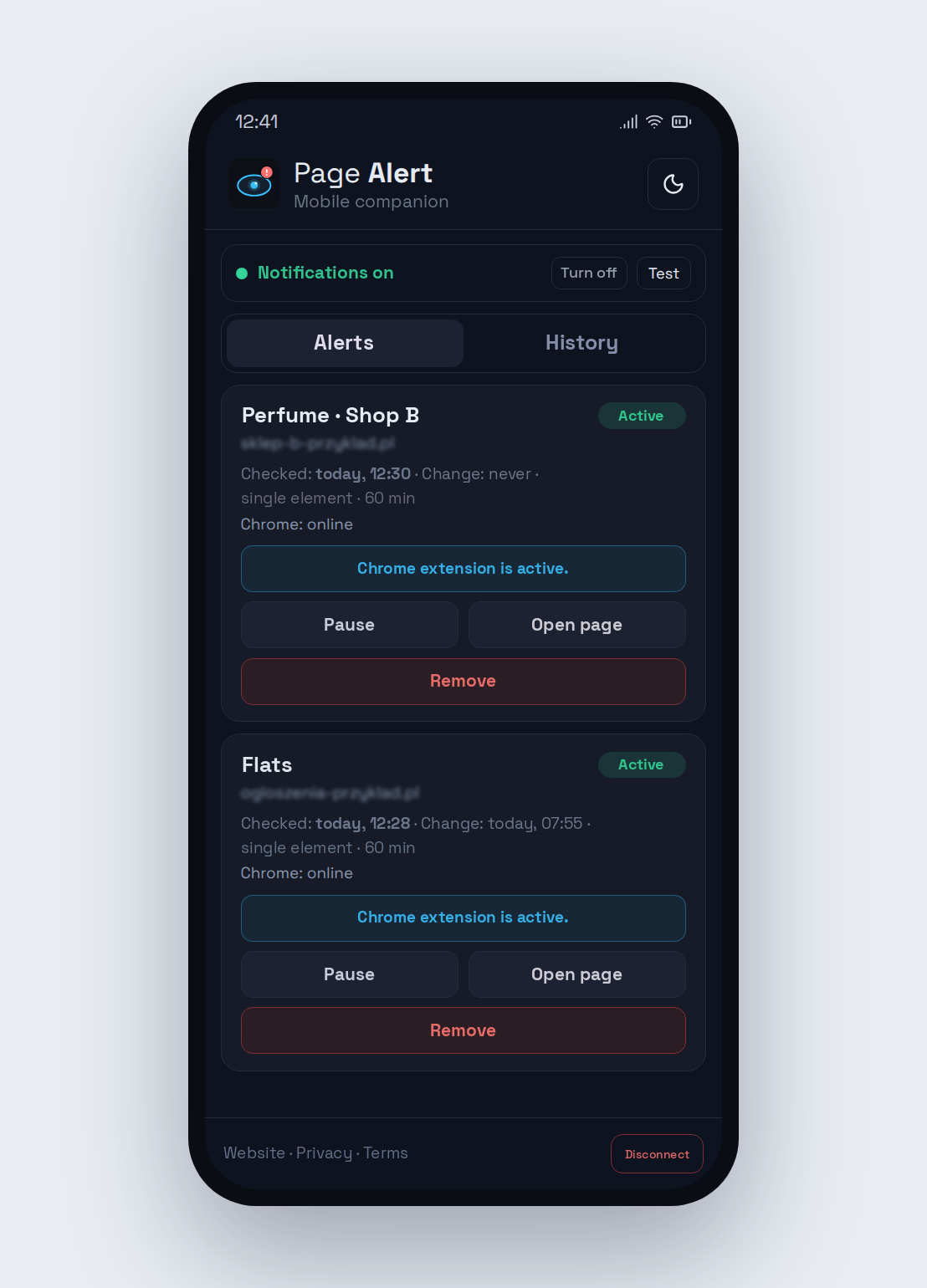
Step 7. To see the latest state of your alerts, tap "Refresh" at the top of the app.
Step 8. You will also find all your notifications in the history on your phone.
Tip: when your computer is switched off, you can tap "Check now" on an alert card. The page is then checked by the Page Alert server, once per alert interval, for example once every 60 minutes. This works on ordinary public pages. It does not work on pages that need a login, block server access or load their content with JavaScript, which includes many large shops. In that case, the card tells you that this page needs the extension to be running.
Tip: if the pairing code expires before you type it in, simply generate a new one.
Where else it helps
Your phone will come in handy with every alert in this book. Tom and Kate would have heard about the new flat on their way to work. Maggie would have bought her tickets right there on the tram. And Helen would have learned about the frost while she was already at her garden.
Chapter 9. How it works under the hood
You do not need to know how Page Alert works to use it. But if you are curious about what happens in the background, this chapter explains it without any technical jargon.
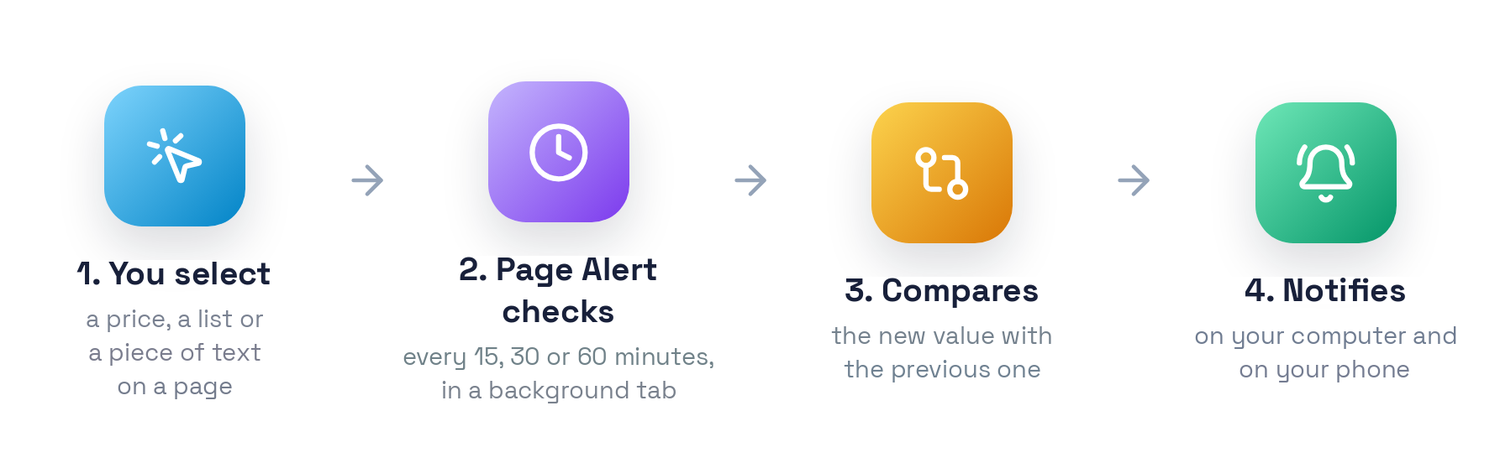
In short, it works in four steps. You select something on a page. Page Alert checks it. It compares the new value with the previous one. And it notifies you.
Page Alert looks at the page just like you do
Every now and then, depending on the interval you chose, every 15, 30 or 60 minutes, Page Alert opens your page in a background tab. It reads the selected element, compares it with the previous value and closes the tab.
That is why, while checking, a new tab briefly appears in your tab bar. It is not an error. Page Alert really opens the page, just like you would, and it sees the page exactly as you see it: with prices, counters and content that only appear once the page has fully loaded.
When a page loads slowly, Page Alert does not give up after the first try. It waits a moment and tries again. And when a page changes its structure a little, for example when a shop moves the price to a different place, Page Alert tries to find the selected element by itself.
Page Alert understands what it is looking at
Page Alert does not just compare letters. It recognizes whether the selected element is a price, a counter or a temperature.
It recognizes a price even when a shop splits it into several pieces, for example euros and cents separately. It can tell a counter from a price, and a temperature from a feels-like temperature. That is why the notification tells you clearly what has changed, for example "Price dropped from €29.99 to €21.99" or "Number of ratings changed from 111 to 114".
On a list, Page Alert remembers which items were there and notices the new ones and the ones that were removed. In Smart mode, artificial intelligence sums up a change in a long text in just a few words.
Your data stays with you
Page Alert was built with privacy in mind, from day one.
No account. Page Alert does not know your name. It does not know your email address or your password, because it never asks for them. Your alerts and settings are stored mainly in your browser, on your computer.
No ads and no ad tracking. Page Alert does not show ads, and it does not build a profile of you for advertisers. It only reads the elements that you select yourself.
Sometimes, though, something has to leave your computer. Here is honestly when:
- when you connect your phone, the addresses of the pages you watch, your labels, short values and change messages are synced through the Page Alert server, so your phone can show them and receive notifications;
- when Smart mode detects a change, selected parts of the content go to the server, and from there they may be sent to artificial intelligence, which writes the summary;
- when your computer is off and you tap "Check now" on your phone, the Page Alert server opens that public page itself to check it, and the result comes back to your phone.
You will find all the details in the Page Alert privacy policy.
What it is all for
Behind all of this, there is one idea from the prologue. You do not want to watch a whole page. You want to know when the one thing you care about changes. Page Alert does exactly that, and does it properly: in the background, and without asking you for your data.
And that is why you can start right away. Free for Chrome and Edge.
More about how Page Alert works on the Page Alert website.
Chapter 10. Honest limits
Page Alert can do a lot, but not everything. It is better to learn about its limits from this book than at the moment when something really matters to you.
Text only
Page Alert watches text: prices, numbers, temperatures, sentences and lists. It does not track changes in images, photos or PDF files.
If a shop shows the price as an image and not as text, Page Alert cannot read it. The same goes for documents posted on a page as PDF files.
What you can do: look for the same information on the page written as text. There is often a short description or a list right next to the PDF that you can watch instead.
Not in real time
Page Alert checks pages only while your browser is running. If you close your browser or switch off your computer, the checks stop.
Page Alert checks pages every 15, 30 or 60 minutes, not every second. If something appears and disappears between two checks, Page Alert may not notice it. A check can also be delayed when your computer goes to sleep, when the browser postpones its tasks, or when your internet connection is weak.
That could have happened to Maggie in chapter 5: tickets that came back on sale for just five minutes could have slipped by unnoticed.
What you can do: where minutes matter, choose the shortest interval you have available.
Pages that defend themselves against robots
Some pages protect themselves against automated visits. They show a puzzle to solve, a check asking whether you are human, or they simply block access. On pages like these, Page Alert may not be able to read the selected element.
What you can do: if an alert on a particular page keeps reporting problems, look for the same information somewhere else, for example in a different shop or on a different website.
Pages behind a login
Pages that require you to log in, or that are behind a paywall, may work unreliably. Page Alert sees the page just as you do, but login sessions expire. When a website logs you out, Page Alert sees the login screen instead of your element.
What you can do: log in to that page again in your browser. On the next check, the alert will work again.
An element that has disappeared
Websites change. A shop redesigns its pages, a listing is removed, a job offer expires. When that happens, Page Alert first tries to find the selected element by itself. If it cannot, an orange message appears on the alert card, saying the element was not found.
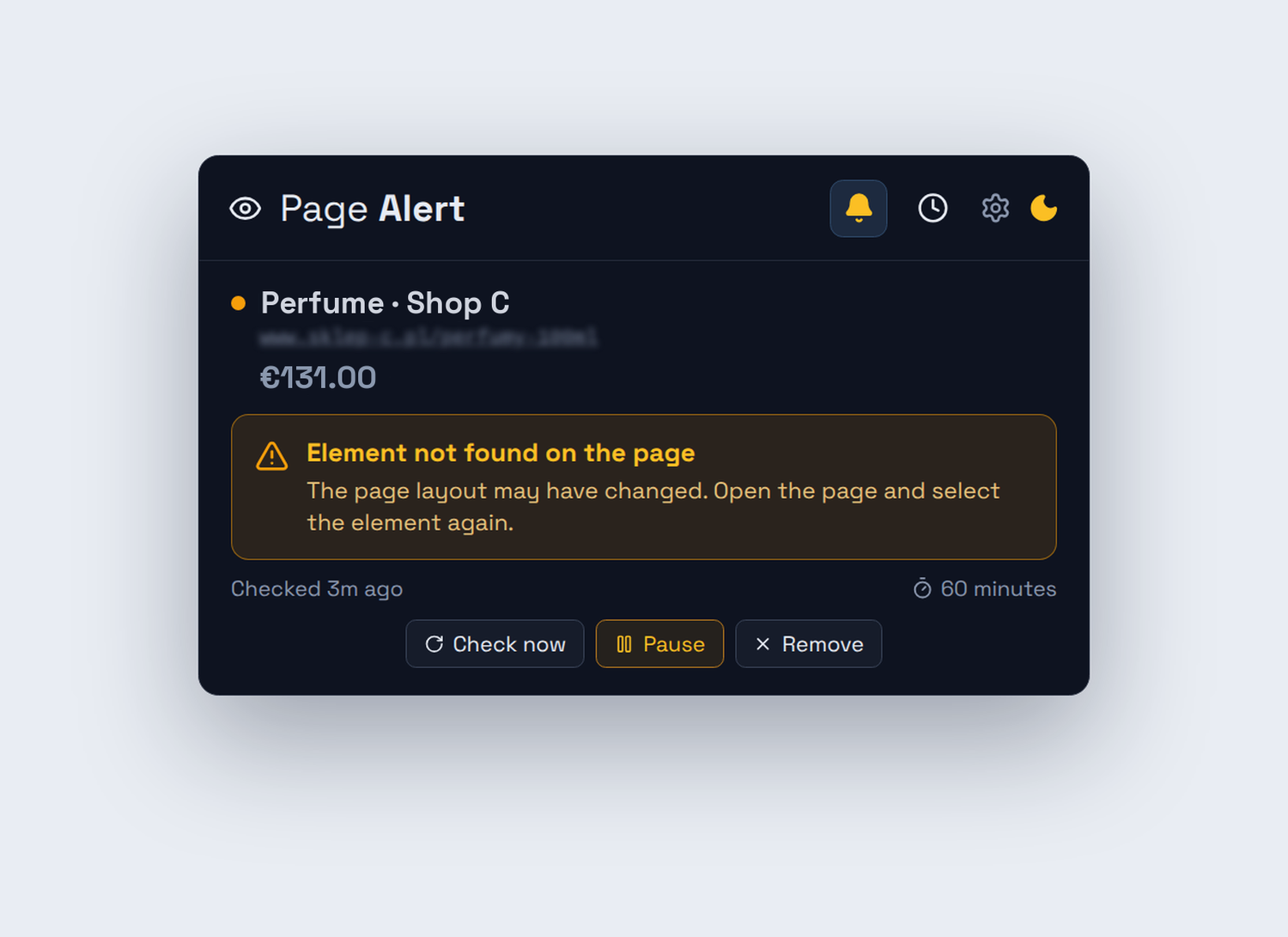
What you can do: open the page and see what happened. If the content is gone for good, remove the alert. If the page has only changed its layout, remove the alert and set it up again on the same element.
Artificial intelligence can make mistakes
A summary in Smart mode is a signal that something has changed, and a hint about roughly what. It is not finished, verified information.
Before any important decision, always check the content on the source page, just like Peter did in chapter 4 and Paul in chapter 6.
Website rules
Every website has its own terms of use, and some of them limit automated visits.
You are responsible for which pages you watch and how often. If a website's rules forbid it, do not set an alert on that website.
What you can do: do not choose a shorter interval than you really need. For most things, like prices, listings or announcements, once an hour is more than enough.
In short
Page Alert will not replace your attention in every situation. But it will take most of the boring checking off your hands. And when something goes wrong, it will usually tell you so itself.
Chapter 11. Plans and frequently asked questions
Plans
Page Alert has three plans. Most of the examples in this book work on the Free plan.
| Free | Trial | Premium | |
|---|---|---|---|
| Price | free | free | €4.99 one-time |
| Duration | no time limit | 7 days | 30 days |
| Alerts | up to 3 | up to 10 | up to 30 |
| Checks | every 60 minutes | every 15, 30 or 60 minutes | every 15, 30 or 60 minutes |
| AI summaries (Smart mode) | none | 2 | 150 |
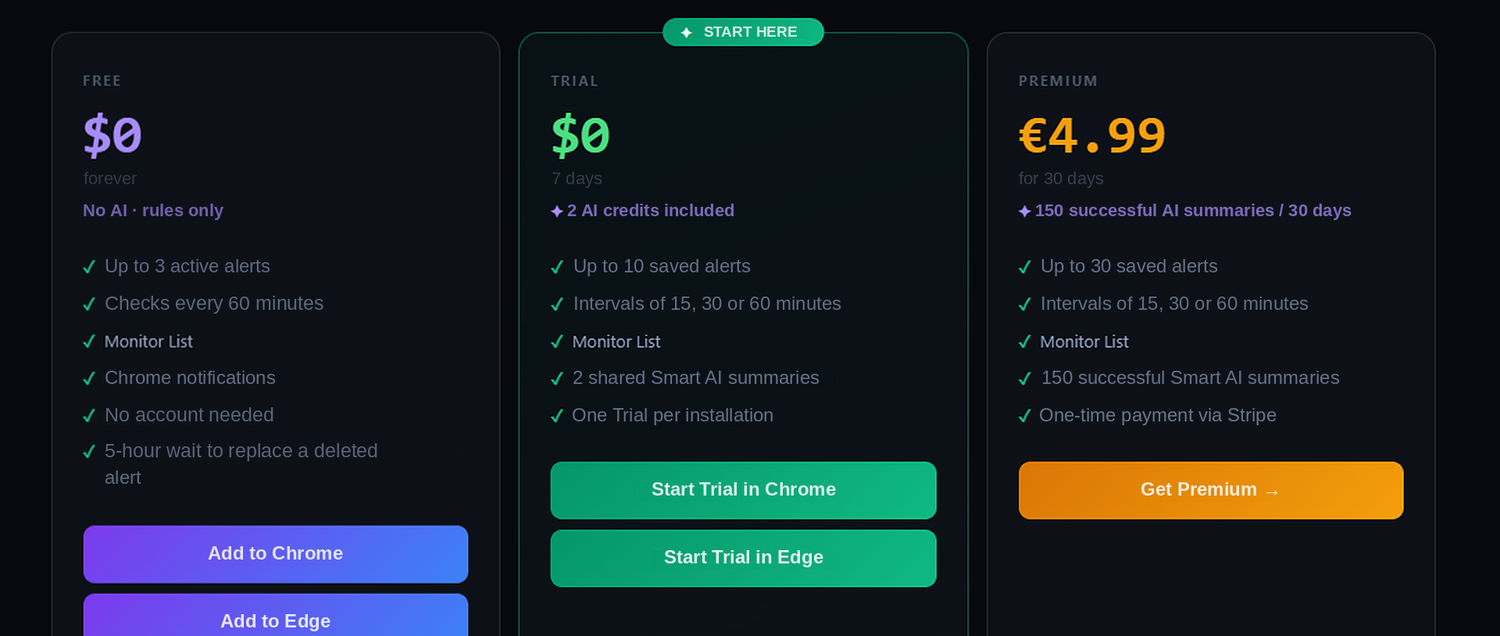
You buy Premium as a one-time payment through Stripe. It is not a subscription, and nothing renews by itself. The 30 days start from your successful payment. After that, you can buy another 30 days if you want to.
Frequently asked questions
Do I need to create an account?
No. No account, no email and no password. You install the extension and set up your first alert straight away.
Does Page Alert show ads or track me?
No. No ads and no ad tracking. Page Alert does not build an advertising profile. What leaves your computer, and when, is explained in chapter 9 and in the Page Alert privacy policy.
Which browsers does Page Alert work in?
In Chrome and in Edge. You will find it in the Chrome Web Store and in Microsoft Edge Add-ons. Free for Chrome and Edge.
Does Page Alert work on every website?
It works on many public websites: in online shops, on job and listings portals, and on official websites, including those built with JavaScript. Pages that require a login, show a puzzle to prove you are human, have a paywall or are protected against robots may work unreliably. More about this in chapter 10.
Does checking work after I close my browser?
No. Page Alert checks pages in the background as long as your browser is running. A check can also be delayed when your computer is asleep or when your internet connection is weak.
Which features need Trial or Premium?
Smart mode, and the shorter intervals of 15 and 30 minutes. Monitoring a single element and monitoring a list also work on the Free plan.
Regular prices, temperatures, availability, counters and statuses do not use up AI summaries. Only a summary in Smart mode does. Trial includes 2 summaries in total, Premium 150 for every 30 days.
How do I start the Trial?
On the plans screen, click "Start Trial" in Chrome or in Edge. The Trial lasts 7 days, and you get one Trial per installation.
How do I pay for Premium?
You buy Premium as a one-time payment through Stripe. After a successful payment, you receive a licence key, and your 30 days start from that moment.
Save your key before you close the payment confirmation page. You will need it if you want to use Premium on another computer.
Can I use one licence on several computers?
Yes. You can enter the same Premium key in any browser. But all your computers share the same 30 days and the same pool of 150 summaries, so activating it somewhere else does not restart the clock. A Trial key works the same way: all devices share the same 7 days and the same 2 summaries.
How do I move my alerts and Premium to a new computer?
On your old computer, export your alerts in the settings. On the new one, import them, just like Paul did in chapter 6. Then enter your licence key on the new computer.
What happens to my alerts when the Trial or Premium ends?
Page Alert goes back to the Free plan. Your alerts are not deleted. Up to 3 alerts without Smart mode stay active, and the Smart alerts and the rest are paused. Your export also includes paused alerts.
As long as you have more than 3 alerts saved on the Free plan, you cannot resume another paused one.
Why can't I add a new alert right after deleting one on the Free plan?
On the Free plan, a freed-up slot can only be used again 5 hours after you delete an alert.
Does Page Alert work on my phone?
Yes, through an app that you open in your phone's browser and connect to your computer with an eight-character code. On your phone, you can see your alerts and history, receive notifications and load the latest state with "Refresh". When your computer is off, "Check now" can check ordinary public pages through the Page Alert server. You set up alerts on your computer. Details are in chapter 8.
What language is Page Alert in?
The same as your browser. Page Alert picks the language by itself and supports six languages.
I did not get any notification. What should I do?
First, look at the notification history, because maybe you simply missed it. Make sure your browser was running. Then use the test notification button in the settings. If the test shows nothing, check in your system settings whether your browser is allowed to show notifications. And if you see an orange message on the alert card, take a look at chapter 10.
Can I watch several pages with the same product?
Yes. Each page is a separate alert, just like for Anna in chapter 2. Add the shop name to the label, so you know right away where the notification came from.
Does Page Alert work without the internet?
No. To check a page, Page Alert has to open it, and for that you need an internet connection.
Where can I report a bug or share an idea?
In the Page Alert settings, in the help and feedback section, click "Write an email". Every message helps make Page Alert better.
Epilogue
Anna gave her sister the perfume for her birthday, and she bought a second bottle for herself, walking down the street on her way to lunch.
Tom and Kate have dinner in their own flat now, with their phones put aside.
Peter has been working for a month at the company he dreamed of, fully remote.
Maggie still wears the wristband from the concert.
Paul wrote his story about the quiet change to the terms of service before anyone else noticed it.
And Helen is just picking her first tomatoes.
None of them suddenly became a computer expert. They simply stopped checking and started getting the information when they really needed it.
No account.
No ads and no ad tracking.
Free for Chrome and Edge.
Chrome Web Store · Microsoft Edge Add-ons · Page Alert website
If you have ever refreshed a page just to check, Page Alert will do it for you.
Important note
Page Alert may sometimes work differently from what this book describes.
Websites change by themselves: they redesign their layout, move their content, or add logins and protection against robots. Page Alert checks pages only while your browser is running, and it does not work in real time. AI summaries may contain mistakes.
Page Alert keeps evolving, so later versions may look and work a little differently.
Always check important information on the source page. You can read more about the limits of Page Alert in chapter 10.